
Stock opname
A stock opname is a physical count of stock at one outlet. The counts are compared with system stock and the differences are posted as stock adjustments. You can keep selling during the count: each line is compared with the stock at the moment it was counted, not when you complete the opname.
An opname moves through Draft, In progress and Completed (or Cancelled).
Go to Product & Inventory → Stock → Stock Opname.
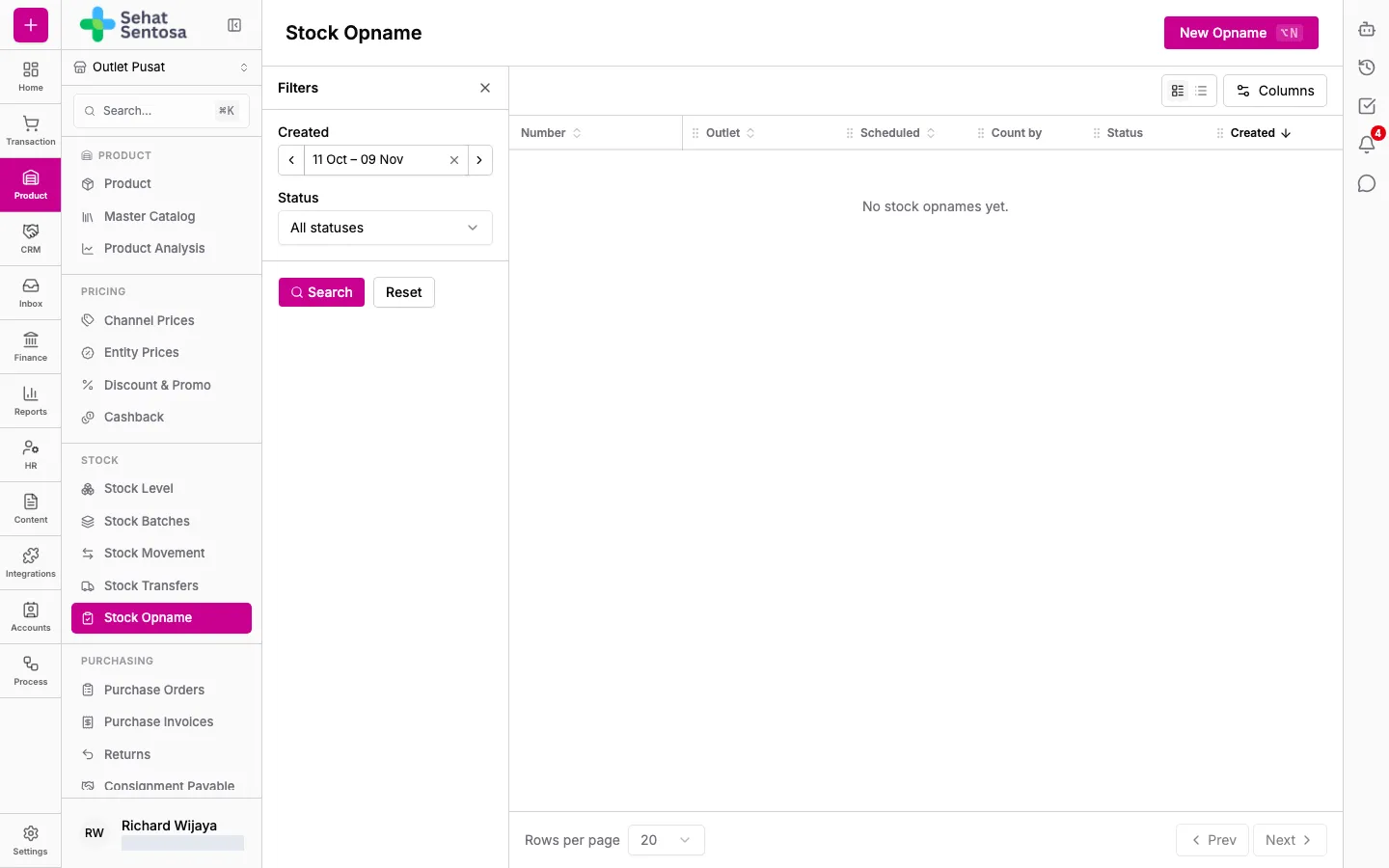
1. Create the opname
Section titled “1. Create the opname”An opname is created for the active outlet in the sidebar.
- Select the outlet to count in the sidebar.
- Click New Opname.
- Set the Scheduled date.
- Choose Count by:
- Batch & expiry: one count per batch (lot) and its expiry date. Recommended for pharmacies.
- Product: one count per product variant.
- Add Notes if needed.
- Keep Hide expected quantity from counters ticked so counters actually count instead of copying the system figure.
- Save. The opname opens in Draft.
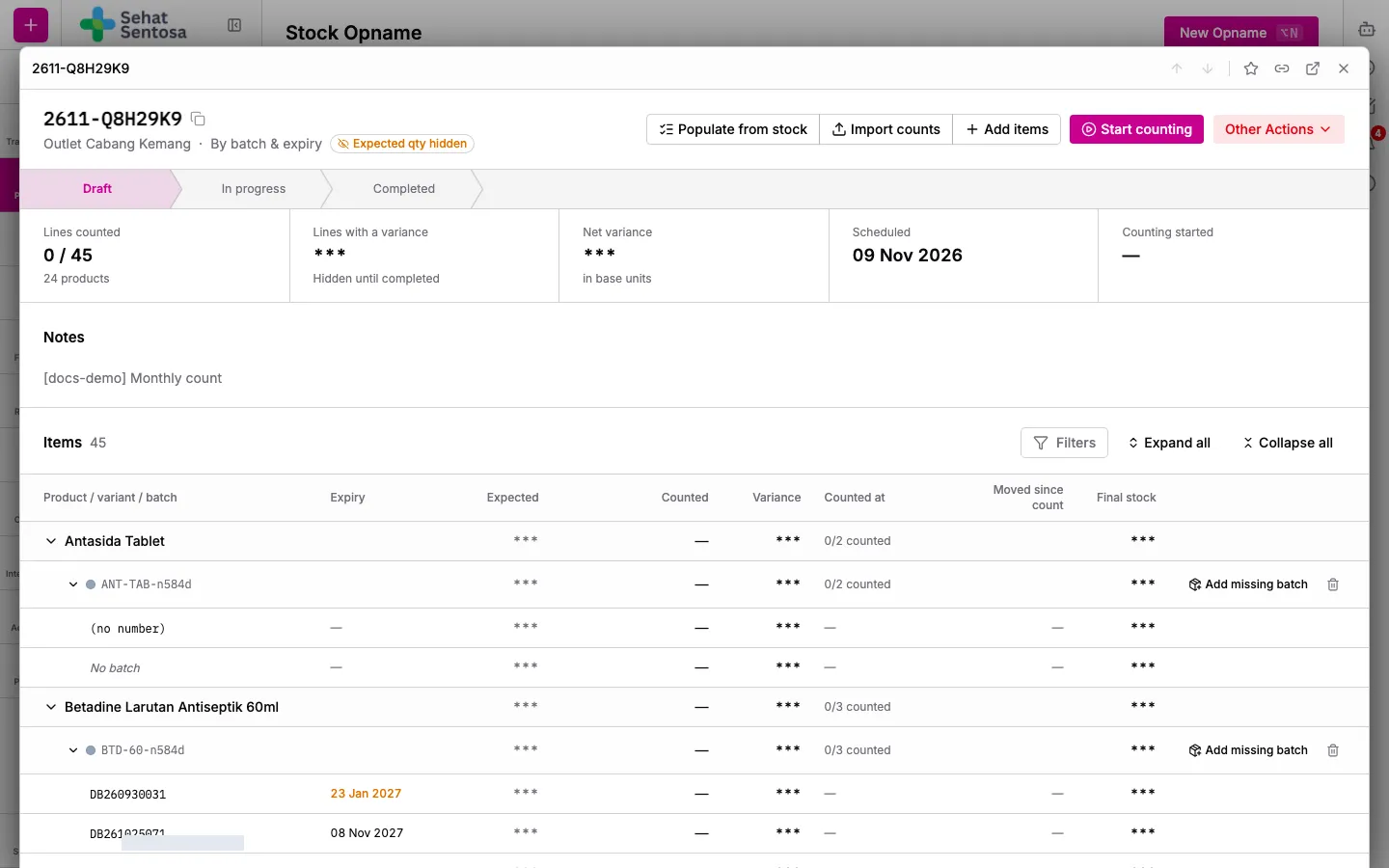
2. Fill the count sheet
Section titled “2. Fill the count sheet”On the detail page, add the products to count:
- Populate from stock: adds every variant with stock at this outlet.
- Add items: search and pick variants one by one.
- Import counts: set counted quantities in bulk from a CSV file. Click Download CSV template for the format. A SKU not yet on the count is added automatically.
In Batch & expiry mode, each product has one line per batch plus a No batch line for stock without a batch label.
3. Count
Section titled “3. Count”- Click Start counting. The status changes to In progress.
- Count the shelf and fill in Counted for each line. You can pick the count unit (for example strip or box) and add another unit with Add unit.
- If you find a batch on the shelf that isn’t in the system, use Add a batch found on the shelf on its product row. Enter the Batch number, Expiry date and Counted quantity (base unit), and check the suggested Unit cost.
- Use the Count status filter (for example Not counted yet) to find the lines still to do.
A line’s count time is when you start entering it. If you counted on paper and typed the numbers in later, correct the time with the pencil next to Counted at.
4. Complete
Section titled “4. Complete”- Check the Lines counted, Lines with a variance and Net variance figures.
- Click Complete and confirm.
- If you see Some registers may still be offline, make sure the outlet’s tills have synced, then choose Complete anyway when you’re sure.
The adjustments for every variance are posted in the background. If posting stops, use Resume or Retry. Lines already posted are never posted twice.
Cancelling
Section titled “Cancelling”Open Other Actions → Cancel opname. You can cancel while the opname is a draft or in progress, or if completing failed before any line was posted.
Every stock opname action needs the stock.opname.* permission.