
Product units and conversions
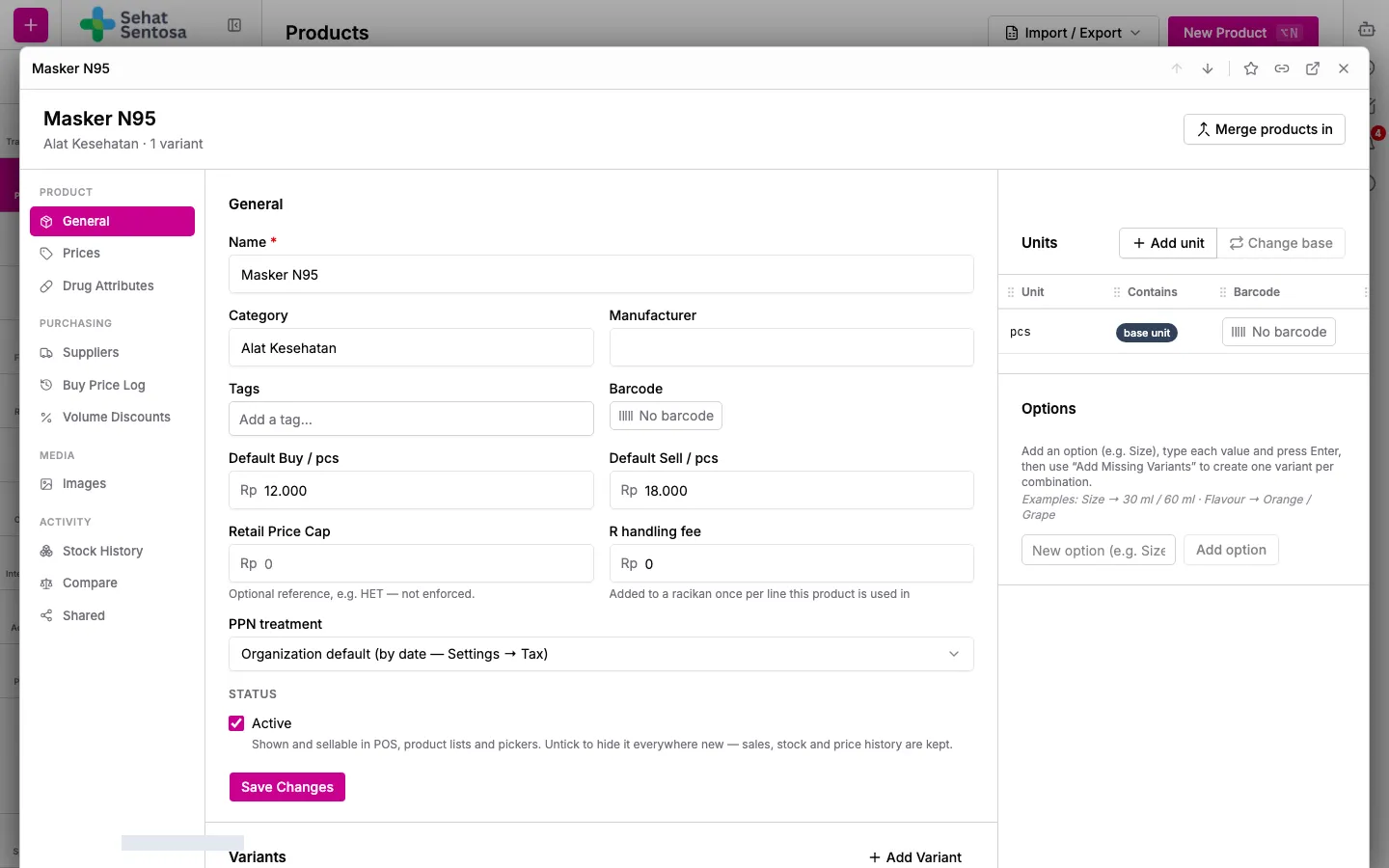
Every product has one base unit (for example tablet or pcs) and can have several packaging units (for example strip, box, carton). Stock, batches and per-base prices are always counted in the base unit. A packaging unit says how many base units one pack holds, for example 1 box = 10 strips.
Your organization’s unit list
Section titled “Your organization’s unit list”The unit codes you can pick from live in Account & Settings → Product → Unit.
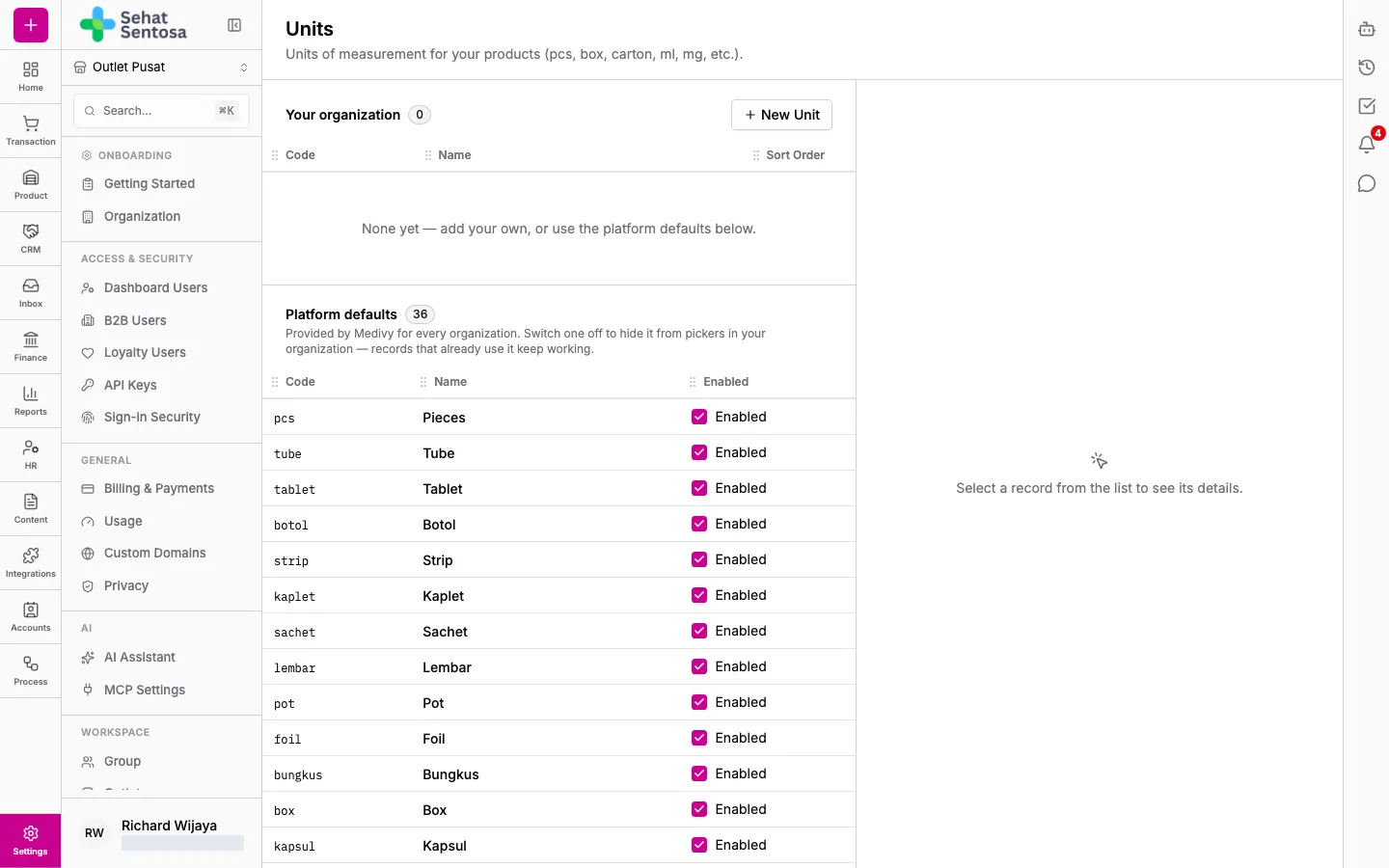
- Open Account & Settings → Product → Unit.
- Your organization lists the units your organization added. Platform defaults lists the units Medivy provides.
- To add a unit, click New Unit, enter a Name (e.g. Tablet) and a Code (e.g. tab), then save.
- Platform default units can’t be edited, but you can switch one off to hide it from your organization’s pickers. Records that already use it keep working.
Add a packaging unit to a product
Section titled “Add a packaging unit to a product”- Open the product from the catalog. In the General menu, find the Units section.
- Click Add unit.
- Pick the Unit Code (e.g. box), enter how many base units it holds, and add a barcode if it has one.
- Save. A packaging unit without its own price sells at the base price × pack size.
Units that are in use
Section titled “Units that are in use”A unit already used by a document (POS sale, invoice, purchase order, stock count, prescription and more) or by a price is marked in use. Such a unit is locked: its pack size can’t change and it can’t be deleted. Only its barcode can still be edited.
If a pack size changes (e.g. a box goes from 10 to 12):
- On the unit’s row, choose Change pack size.
- Enter the new amount in 1 box = how many (base unit)? and save.
- Medivy retires the old unit and adds a new one with the same code. Old documents keep reading the old size.
- Set prices for the new unit again, because the old unit’s prices are deactivated.
To stop using a unit, choose Retire. It disappears from pickers and the POS and its prices are deactivated, but old documents keep showing it. Click Show retired to see it again, and Restore it if needed (its prices stay inactive).
Change the base unit
Section titled “Change the base unit”Change base is available once the product has more than one unit. Another unit becomes the base unit, and stock, prices and history are converted.
- In the Units section, click Change base.
- Pick the New base unit and check the Before / After preview.
- If open documents still use the old base unit, finish or cancel them first.
- Click Change base unit to confirm.