
Billing and plan
The Billing & Payments page shows the Medivy plan your organization is on, what it costs, and the payments recorded so far. Medivy sets up your plan; from this page you can see it and, where available, pay for it.
Open Account & Settings → General → Billing & Payments.
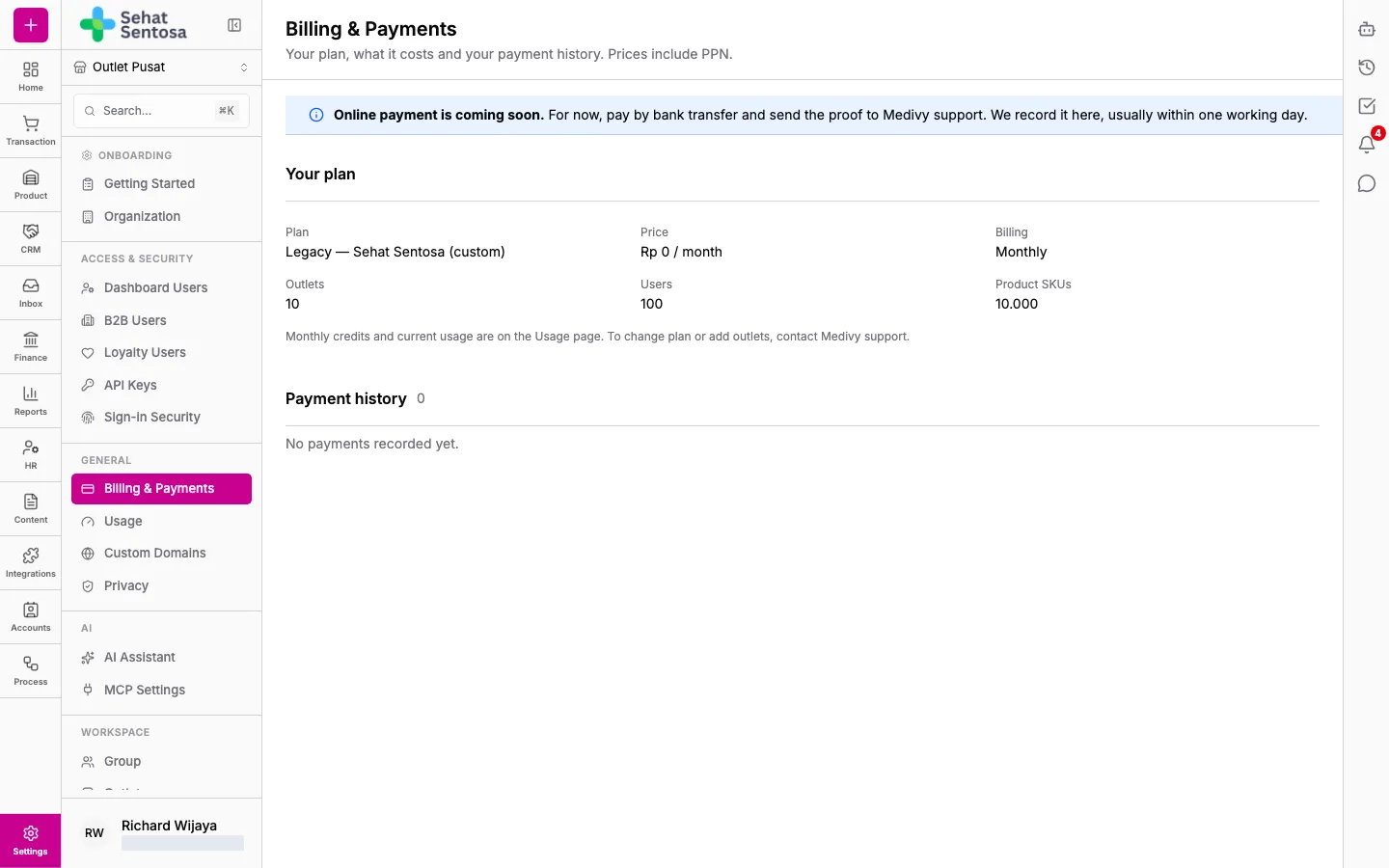
Your plan
Section titled “Your plan”The Your plan section shows:
- Plan: the plan’s name. A plan made just for your organization is marked (custom).
- Price and Billing: the price per month (Monthly) or per year (Annual). Prices include PPN.
- Outlets: how many outlets you can use. If you bought extra outlets, the breakdown shows (included outlets + extra outlets × price per outlet).
- Users and Product SKUs: the limits on users and product SKUs. Unlimited means no limit.
While your organization is trying another plan, Trial of <plan> shows with its end date and the plan you go back to afterwards.
A new organization starts on the Free plan until its plan is changed. Besides the limits above, every plan also caps file storage (documents, product images and attachments): Free 1 GB, Plus 10 GB, Pro 50 GB and Max 200 GB.
Monthly credits and current usage are on the Usage page (Account & Settings → General → Usage). To change plan or add outlets, contact Medivy support.
When you reach a plan limit
Section titled “When you reach a plan limit”If you add outlets, users or product SKUs beyond your plan’s limit, or upload a file when storage is full, the dashboard refuses it and shows a message with a See plans button that opens this page. The same happens if you use a feature your plan doesn’t include.
When storage is full, delete files you no longer need or upgrade your plan. Files the system creates (such as exports, payslips, receipts and shared PDFs) are still created, but they count toward your usage.
Pay for your plan
Section titled “Pay for your plan”When online payment is available, a Pay Rp … button shows at the top right.
- Click Pay Rp …. You’re taken to the payment page.
- Complete the payment there.
- Back in the dashboard, Payment received appears. The payment shows in the history within a few seconds.
If you cancel on the payment page, Payment cancelled appears and nothing is charged.
When online payment isn’t available yet, an Online payment is coming soon. notice shows instead. Pay by bank transfer and send the proof to Medivy support. Medivy records it here, usually within one working day.
Payment history
Section titled “Payment history”Payment history lists every plan payment: Paid on, Amount, Method (for example Bank transfer, Virtual account or QRIS), Reference, Period (the subscription period it covers) and Status (Paid, or Cancelled for a payment Medivy voided). Above the table you see the total paid and the date of the last payment.