
Recording purchase invoices and receiving goods
A purchase invoice (faktur pembelian, e.g. a wholesaler’s faktur) records a supplier’s bill for the active outlet. Goods only enter stock when you receive the invoice. At that point Medivy creates the stock batches, the payable to the supplier and the accounting journal.
Menu: Product & Inventory → Purchasing → Purchase Invoices.
Create an invoice
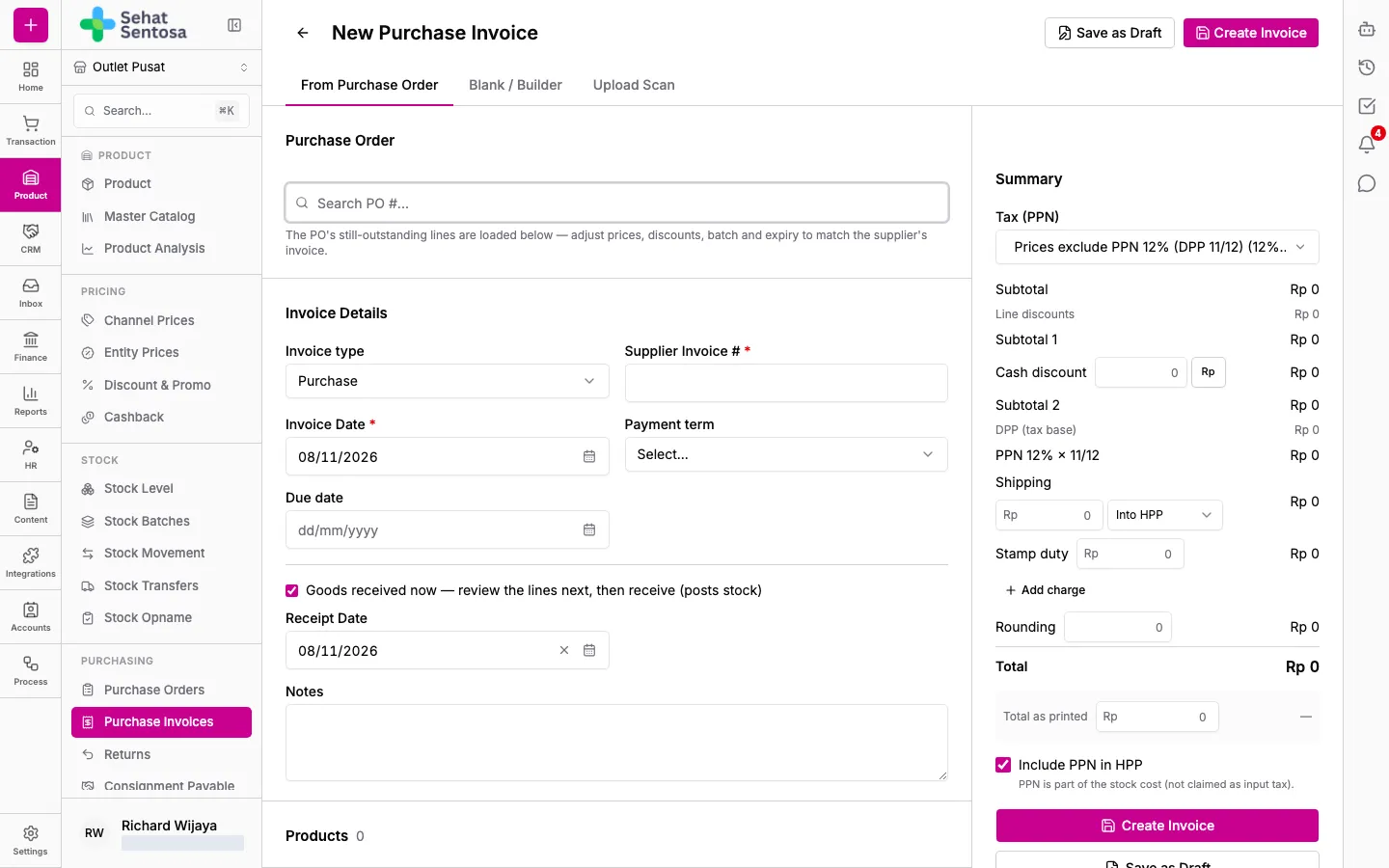
Section titled “Create an invoice”- Open Purchase Invoices and click New Invoice.
- Choose how to fill it in:
- From Purchase Order — search for the PO number. The supplier and products come from the PO.
- Blank / Builder — enter every line yourself.
- Upload Scan — upload a photo/PDF of the invoice and let AI read it (only shown when the feature is enabled for your organization). Double-check any field flagged for review.
- In Invoice Details, fill in the Supplier, Invoice type (Purchase or Consignment), Supplier Invoice #, Invoice Date, Payment term and Due date.
- Fill in the product lines: qty, unit, price, discounts (Disc 1, Disc 2), batch number and expiry date.
- In the summary, set the VAT (PPN) mode, invoice discount, shipping, stamp duty, other charges and rounding so the total matches the printed invoice.
- Save:
- Create Invoice — creates the invoice. With Goods received now ticked, you go straight to the receiving review.
- Save as Draft — posts no stock, journal or payable. Open it later to finish it and receive the goods.
Receive the goods
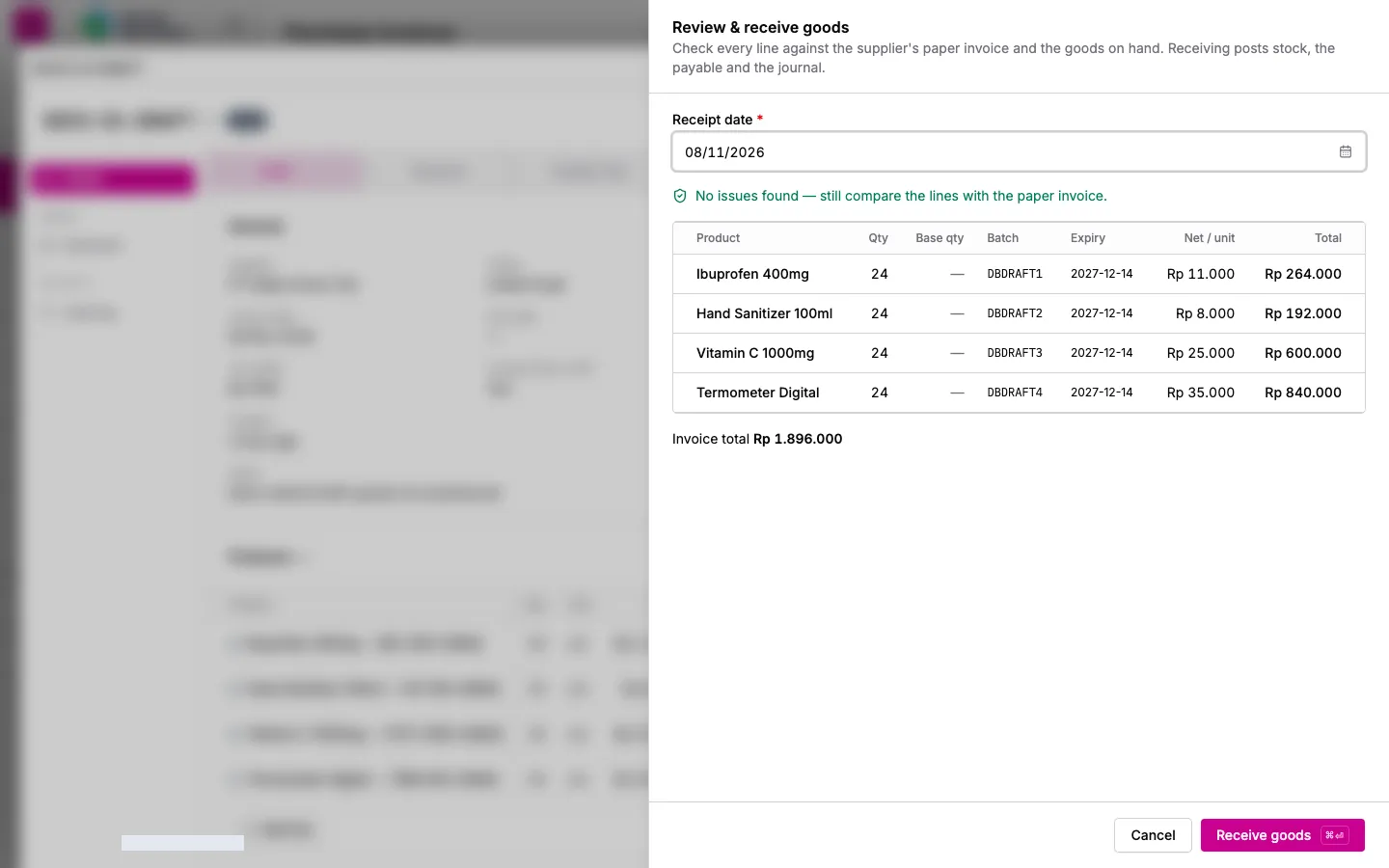
Section titled “Receive the goods”- Open a Draft invoice and click Receive goods….
- In Review & receive goods, enter the Receipt date.
- Check each line: base-unit qty, batch, expiry and cost. Medivy warns you about, for example, a missing batch or expiry, expiry under 6 months, a qty different from the PO, a price far from the supplier’s price, or a total that differs from the printed invoice.
- If there are warnings, tick I checked the items above against the supplier’s invoice and the goods.
- Click Receive goods. Stock, the payable and the journal are posted.
Record a payment
Section titled “Record a payment”- On a received invoice, click Record payment….
- Enter the Amount, choose the Payment Channel (the account or cash the money comes from), the Payment Date and a Reference (e.g. the transfer number).
- Save. The status becomes Partially Paid or Paid. History is on the Payments tab.
To use the supplier’s return credit, click Apply supplier credit….
- Filter the list by Status (Draft, Received, Voided), Payment and Invoice type.
- Once goods are received, lines and anything that affects the stock cost (HPP) are locked. To fix mistakes, see Correcting a purchase invoice.
- Creating, receiving and paying invoices needs
purchase.*.