
Transactions pending review
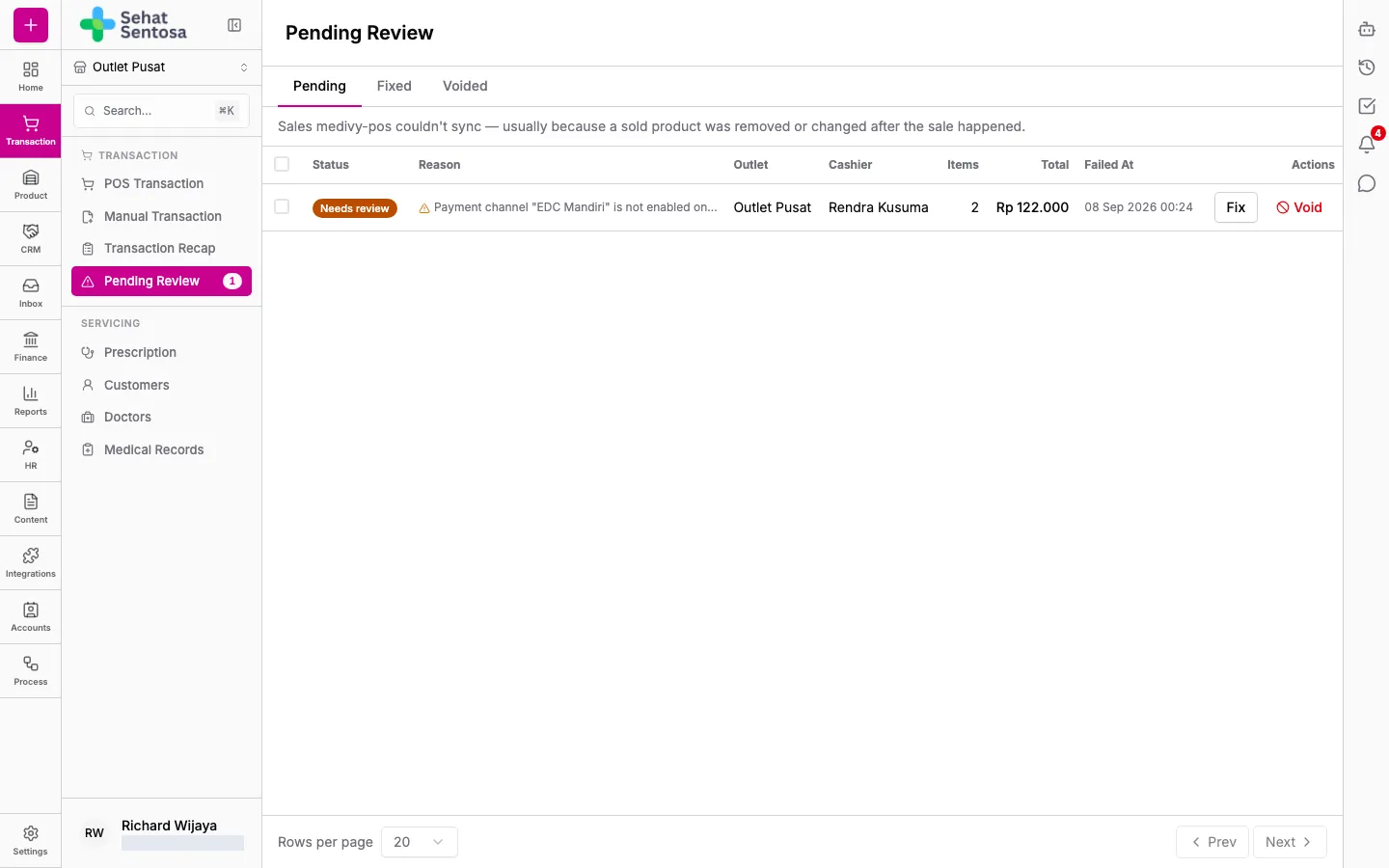
Sometimes a sale from the POS app fails to sync to the server, usually because a product that was sold was removed or changed after the sale. These sales aren’t lost: they go into Pending Review and need a decision from staff. The count on the menu shows how many are still waiting.
Open the list
Section titled “Open the list”- Go to Transaction → Transaction → Pending Review.
- Pick a tab:
- Pending: sales that haven’t been decided yet.
- Fixed: sales recorded as a real transaction. Click a row to open that transaction.
- Voided: sales that were permanently rejected.
- Each row shows the Reason it failed, outlet, cashier, item count, total and Failed At time.
Approve a sale as-is
Section titled “Approve a sale as-is”If every product on the sale still exists, you can approve it directly. A POS transaction is created at the prices the customer actually paid.
- On the Pending tab, tick the rows you want to approve. Rows with a missing product can’t be ticked.
- Click Approve selected.
- The page reports how many were approved and how many were skipped, with the reason.
Fix a sale
Section titled “Fix a sale”Use Fix when a product needs to be remapped.
- Click Fix on the sale’s row.
- The Record Transaction form opens, prefilled with the original sale.
- Replace the problem products, check the sales channel and payment account, then save.
- The sale moves to the Fixed tab, linked to its new transaction.
Void a sale
Section titled “Void a sale”If the sale shouldn’t be recorded at all, click Void on its row and confirm. The sale is permanently rejected and never becomes a transaction, but its data stays visible on the Voided tab.