
Cashier sessions and cash reconciliation
Each time a cashier opens a shift in the POS app, a register session is recorded. At the end of the shift the cashier counts the cash in the drawer, and the system compares it with the cash that should be there. Use this page to review shifts, find cash differences (over/short) and see cash movements.
View the session list
Section titled “View the session list”- Go to Transaction → Transaction → POS Transaction.
- Click the POS Sessions tab.
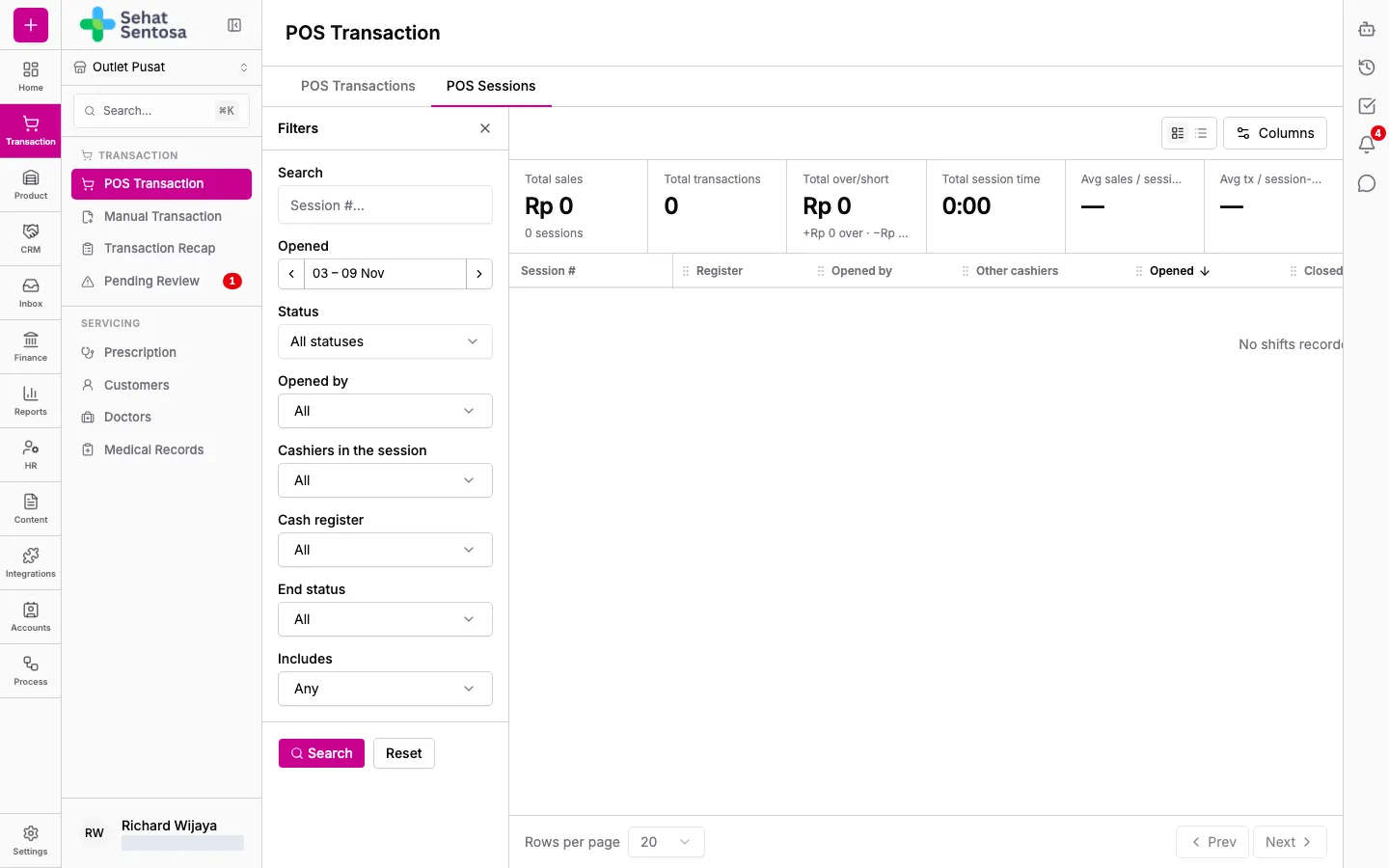
- The summary at the top shows Total sales, Total transactions, Total over/short, Total session time, and average sales and transactions per session-hour.
- Each row shows the Session #, register, cashier, Opened/Closed time, Status (Open or Closed), Sales and Over/Short.
Filter sessions
Section titled “Filter sessions”Use the filter panel to search by Session #, Status, Opened date, Opened by, Cashiers in the session, Cash register, End status (Over, Short or Match) and Includes (sessions with a given cash movement, such as Cash out or Bank drop).
Review a session
Section titled “Review a session”- Click a session row.
- The Details tab shows:
- Cash reconciliation: Opening float, Recorded sales, Refunds, Expected cash, Counted cash and Over/short.
- Cash movements: cash in, cash out, payouts/expenses, bank drops and corrections during the shift.
- The cashiers who worked the shift.
- The Transactions tab lists every sale in the session, Device shows the device and printer used, and Audit log shows the session’s activity history.
Close a session remotely
Section titled “Close a session remotely”If a cashier forgot to close their shift, an owner or admin can close it from the dashboard.
- Open a session that is still Open and choose Close session remotely from the actions menu. You can also click Close on the cashier’s card under Active Cashier Sessions on the POS Transactions tab.
- Confirm with Force Close.