
B2B portal overview
The B2B portal is where a pharmacy’s business customers (clinics, hospitals, other pharmacies) handle their purchasing themselves. Your purchasing or admin staff can see agreed prices, create purchase requests, respond to estimates, and follow up on invoices.
The portal’s screens are in Indonesian, and there is no setting to switch them to English. In this guide, on-screen labels are in bold exactly as they appear, with the English meaning in brackets, e.g. Penawaran (Proposals). A few buttons are still in English (such as Save as Draft and Approve) and are written as they appear.
The overview page
Section titled “The overview page”After you sign in, you land on your account’s Ringkasan (Overview) page. The heading is your company name, with the pharmacy your account is with underneath (“Akun Anda di …”, “Your account with …”).
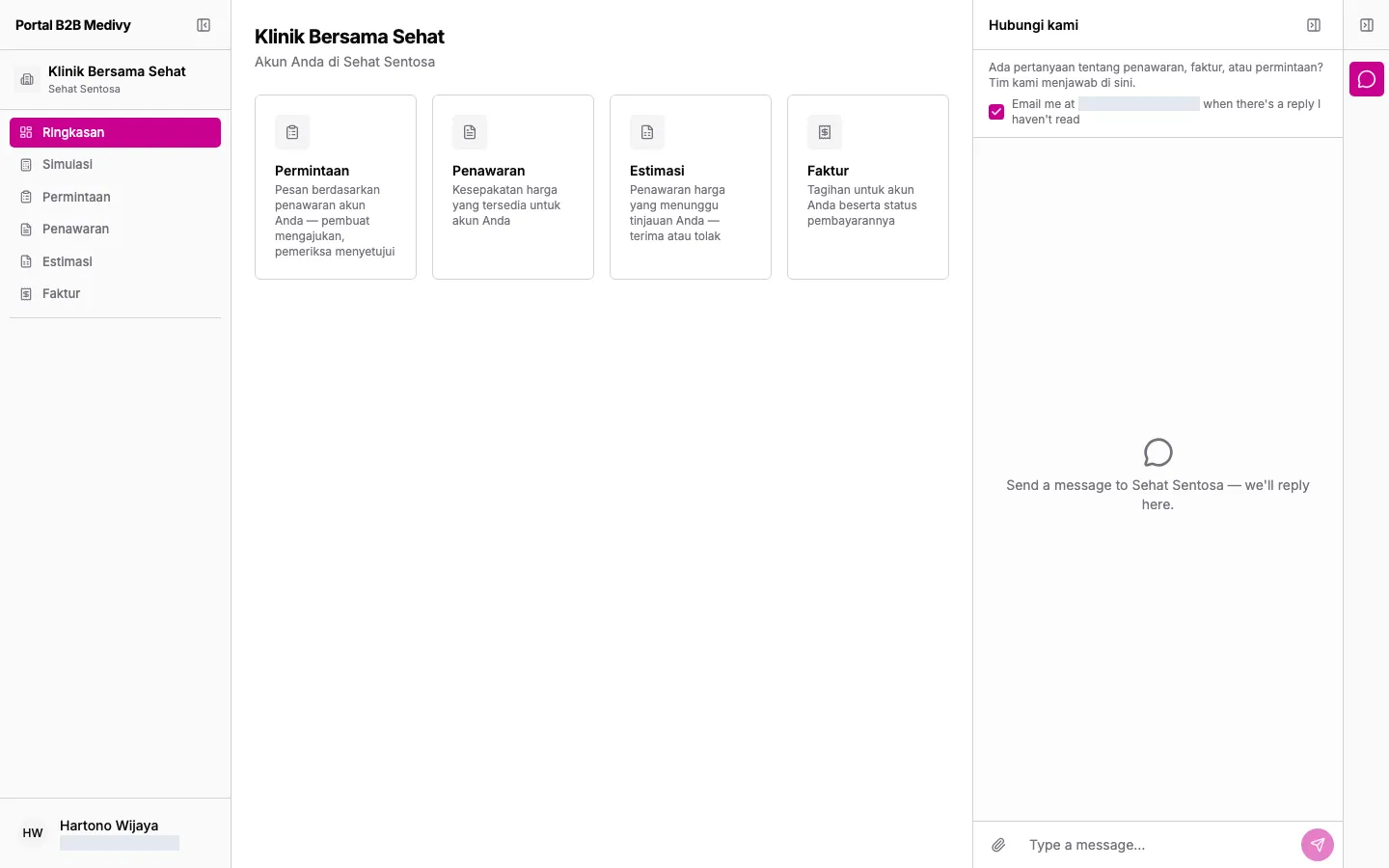
The page has four shortcut cards:
- Permintaan (Requests): purchase requests against your account’s proposals. A maker submits, a checker approves.
- Penawaran (Proposals): price agreements the pharmacy set up for your account.
- Estimasi (Estimates): quotations waiting for your response (accept or reject).
- Faktur (Invoices): bills issued to your account and their payment status.
The left menu
Section titled “The left menu”| Menu | Use it to |
|---|---|
| Ringkasan (Overview) | See the account summary. |
| Simulasi (Simulation) | Price an order and create a purchase request. |
| Permintaan (Requests) | See purchase requests and their status. |
| Penawaran (Proposals) | See agreed price lists. |
| Estimasi (Estimates) | See quotations from the pharmacy. |
| Faktur (Invoices) | See bills and payments. |
The active account’s name sits at the top of the menu. Your name and email are at the bottom. On the right is the Hubungi kami (Contact us) panel for messaging the pharmacy, if the pharmacy has turned messaging on.
Help and signing out
Section titled “Help and signing out”Click your name at the bottom left to open the user menu:
- Help: opens this guide in a new tab, at the page about the screen you’re on. The guide opens in English if your browser’s language is English, otherwise in Indonesian.
- Logout: signs you out of the portal.
User roles
Section titled “User roles”The pharmacy gives each portal user one role when inviting them. The role decides what you can do:
| Role | Can |
|---|---|
| Maker (pembuat) | Create purchase requests, save them as drafts, and submit them for approval. |
| Checker (pemeriksa) | Everything a Maker can, plus approve or reject submitted requests. |
| Viewer | View only; can’t create or change requests. |