Stock movements and adjustments
Every stock change, whether a sale, a purchase receipt, a transfer, a stock opname or a manual adjustment, is recorded as a stock movement. The Stock Movement page is the full history. You can also correct stock here, for example for damaged goods.
Go to Product & Inventory → Stock → Stock Movement. The page has two tabs: Movements (history) and Bulk Adjust.
Viewing movement history
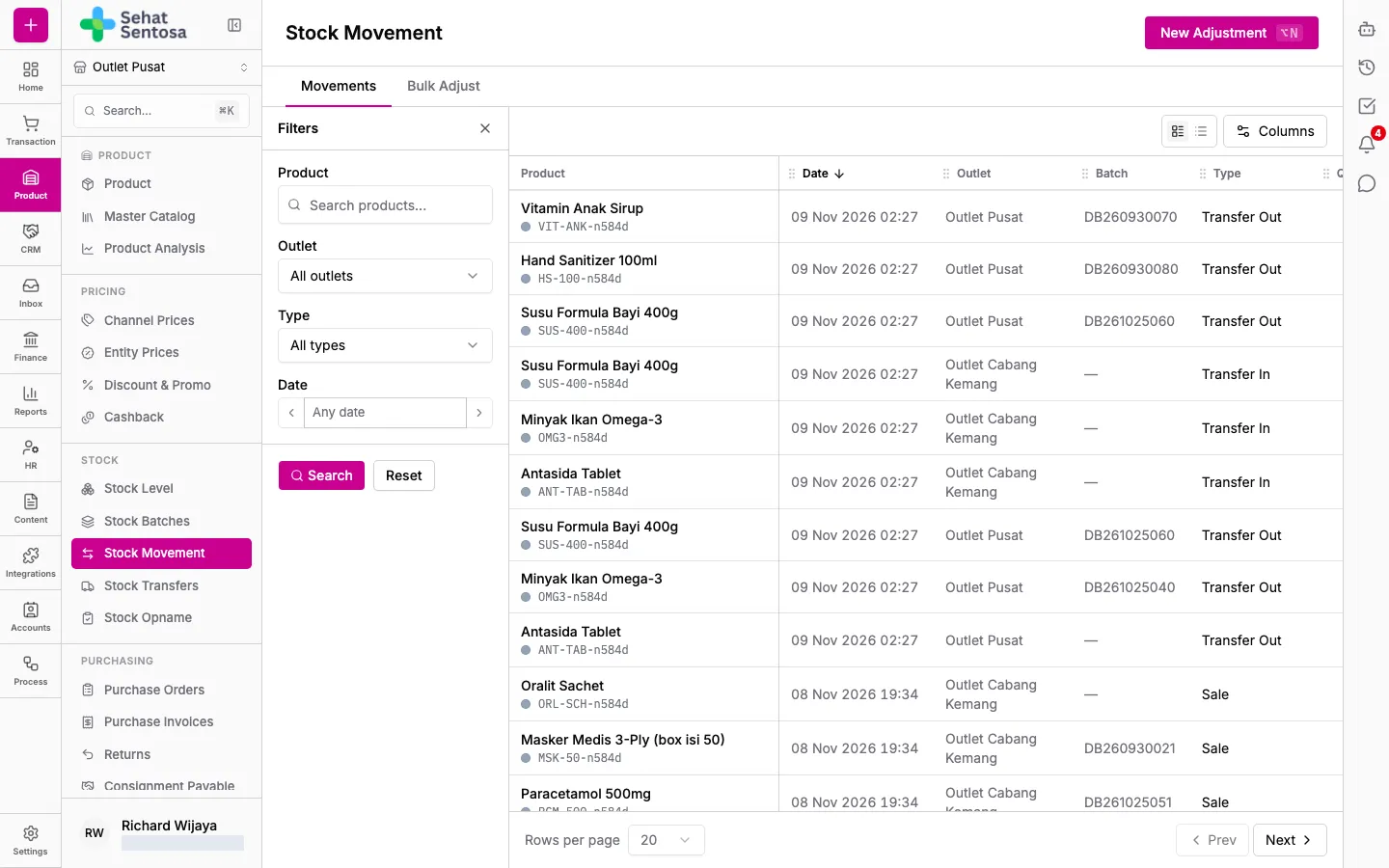
Section titled “Viewing movement history”- Open the filter panel.
- Pick a Product, Outlet, Type (for example Sale, Purchase, Transfer In, Opname) and a Date range.
- Click Search.
- Click a row to see the movement’s details and the document behind it (sale, purchase invoice, transfer or stock opname).
Back-dated movements (for example from an offline till that synced later) show both when the stock moved and when it was recorded.
Adjusting one product
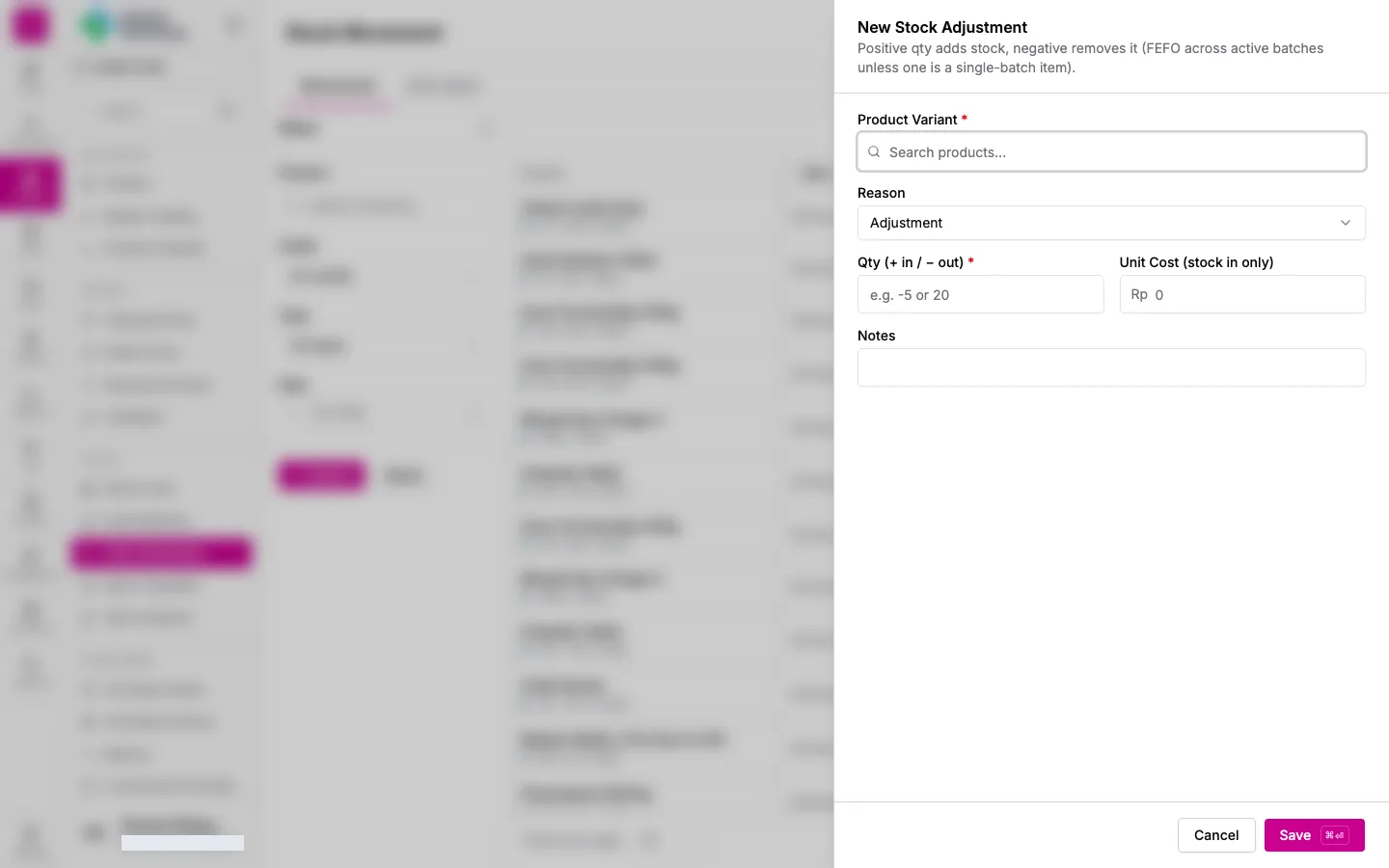
Section titled “Adjusting one product”- On the Movements tab, click New Adjustment.
- Pick the Product Variant.
- Choose a Reason: Adjustment, Damaged, Expired Write-off, Supplier Return or Consignment Return.
- Enter Qty (+ in / − out): a positive number adds stock, a negative number removes it, for example
-5or20. - For stock coming in, enter Unit Cost (stock in only).
- Add Notes so the reason is clear in an audit.
- Save.
Stock removed is taken from the active batches that expire first (FEFO).
Adjusting many products at once
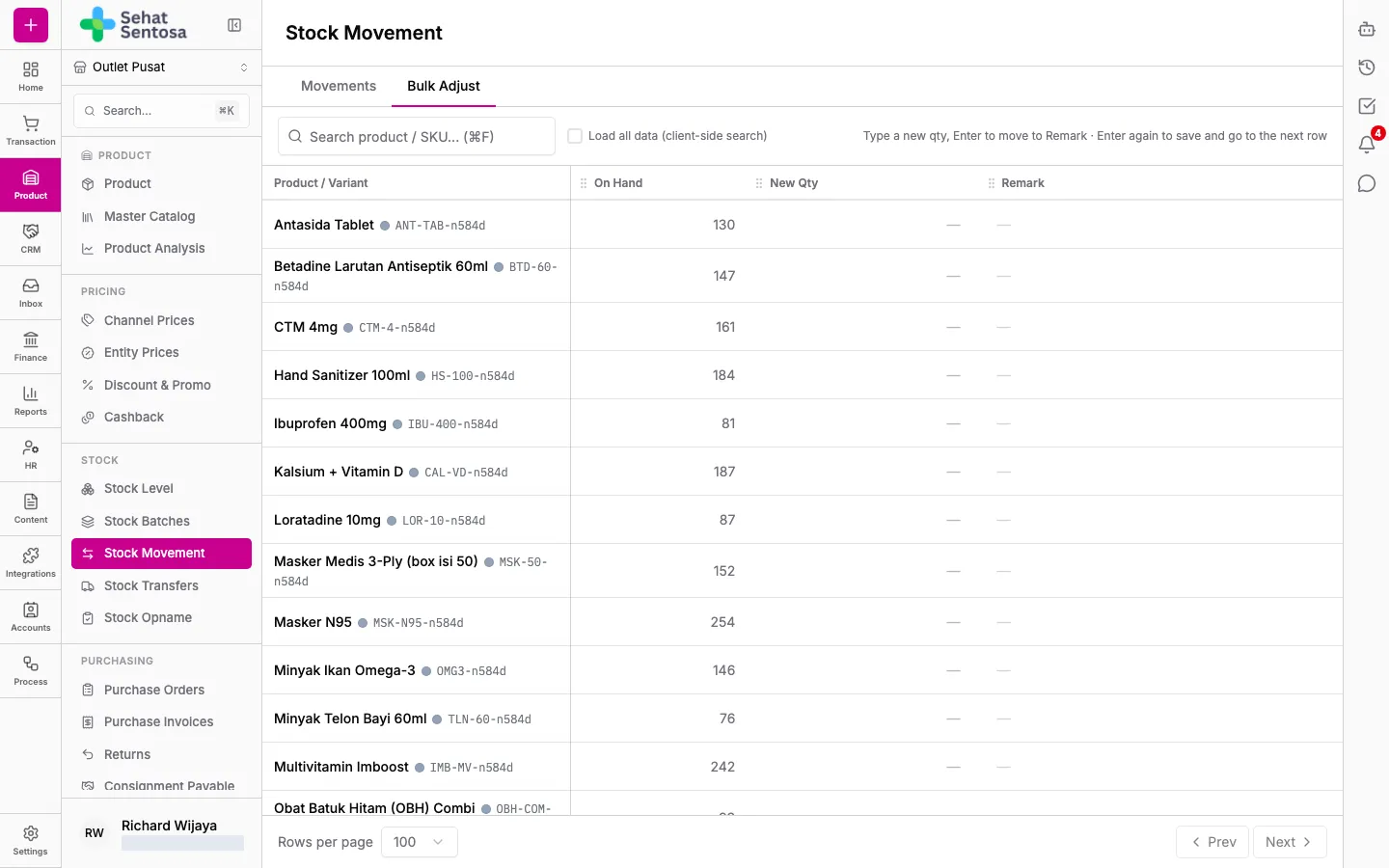
Section titled “Adjusting many products at once”The Bulk Adjust tab is a spreadsheet-style grid for the active outlet.
- Make sure the right outlet is selected in the sidebar.
- Open the Bulk Adjust tab.
- Find products with Search product / SKU…. Tick Load all data (client-side search) to load every product at once.
- In New Qty, type the correct stock quantity (not the difference). Press Enter to move to Remark, and Enter again to save and go to the next row.
- Click Apply Changes. Pending Updates lists the Before and After value of each change.
- Review the list, discard any mistakes, then click Apply N changes.
The difference between the new quantity and the on-hand quantity is posted as an adjustment movement.