
Managing suppliers
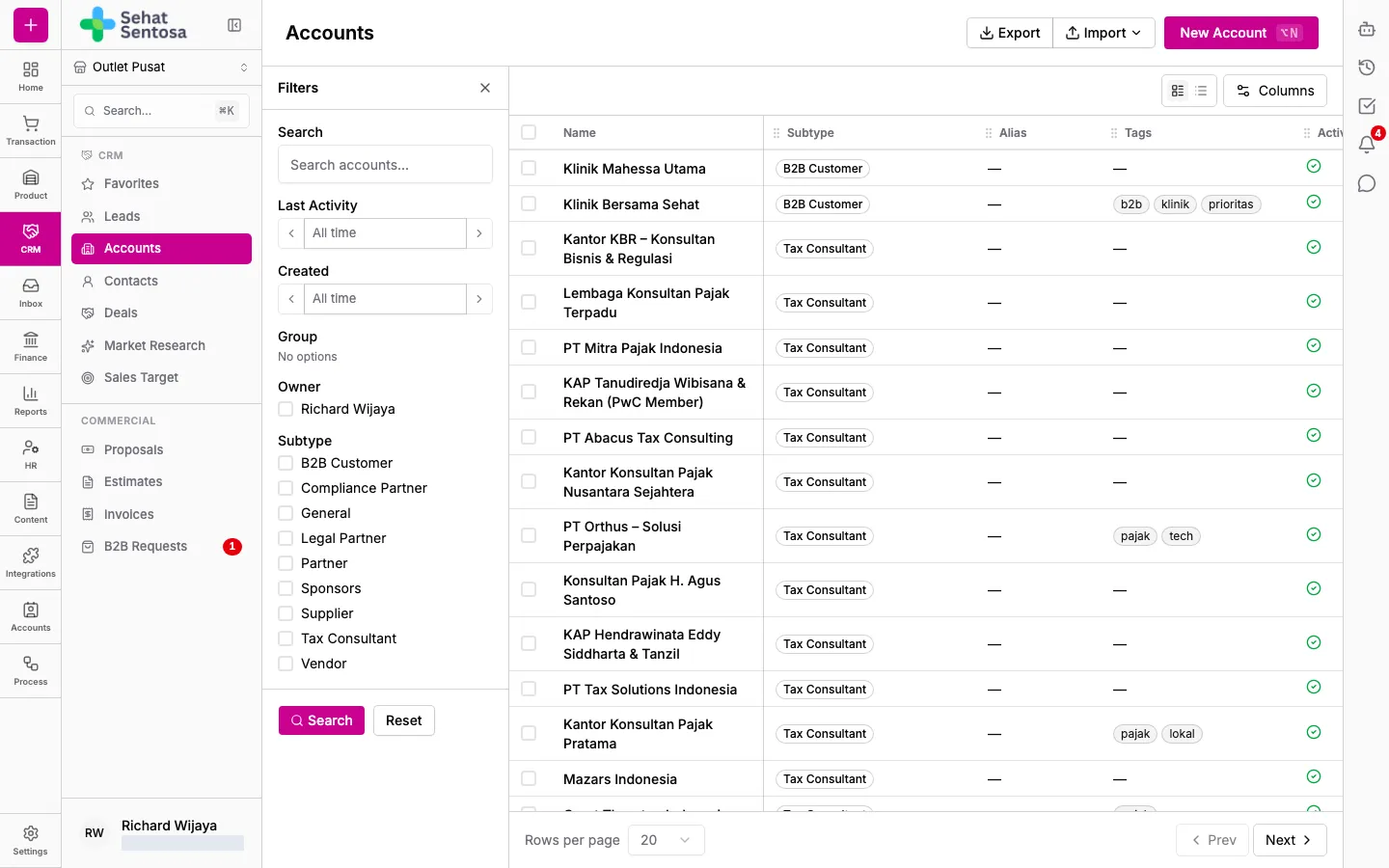
In Medivy, suppliers (wholesalers, distributors or principals) are CRM Accounts with the Supplier subtype. The same supplier record is used on purchase orders, purchase invoices, returns and consignment.
Add a supplier
Section titled “Add a supplier”- Go to CRM & Sales → CRM → Accounts.
- Click New Account.
- Pick the Supplier subtype and continue.
- Enter the company name and contact details, then save.
Set a default payment term
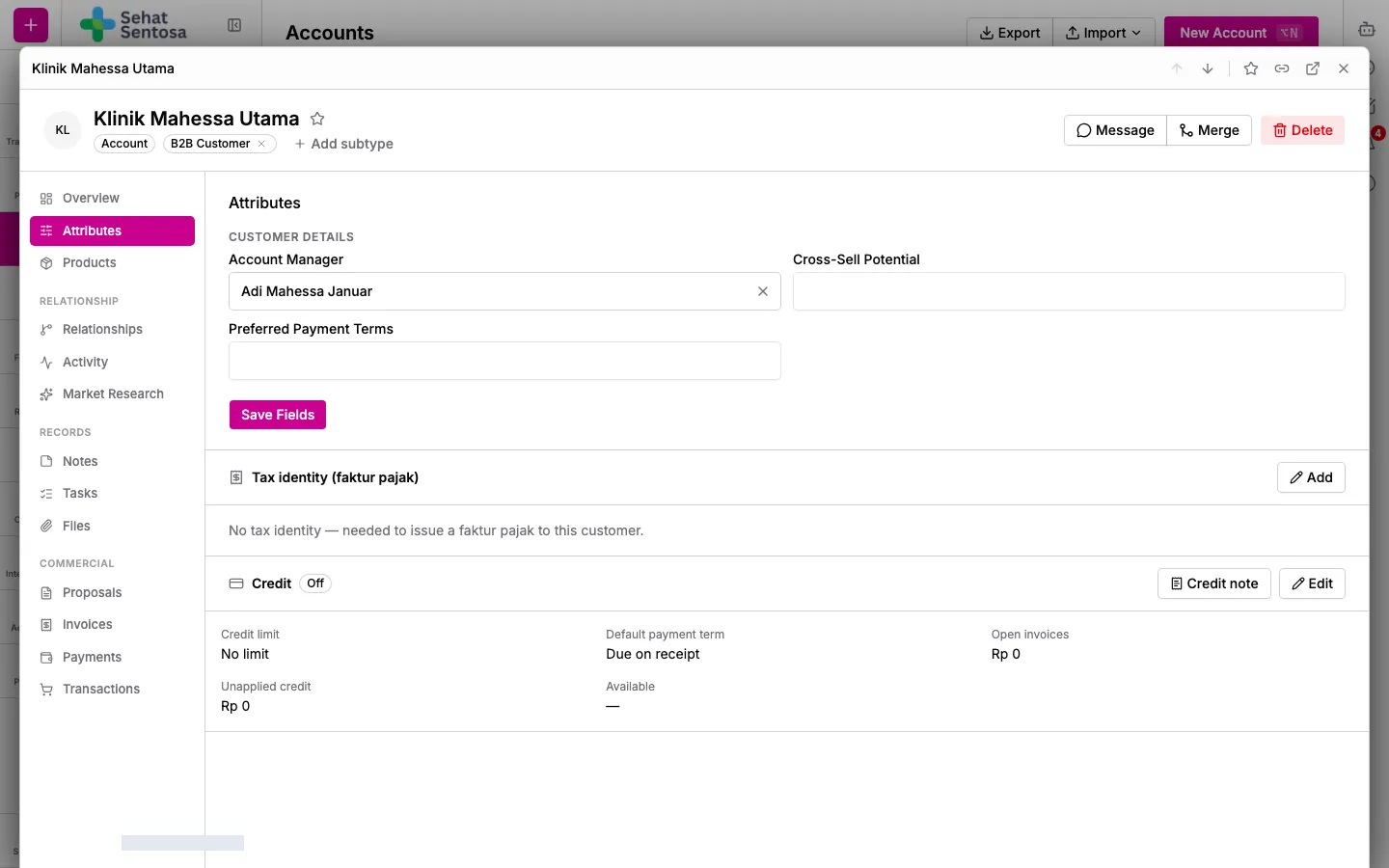
Section titled “Set a default payment term”New purchase invoices from this supplier start with this term, and the due date is calculated from it.
- Open the supplier’s account and go to the Attributes tab.
- On the Purchasing card, click Edit.
- Choose the Default payment term and save.
Payment terms themselves are managed in Account & Settings → Finance → Payment Terms.
Keep a supplier’s products
Section titled “Keep a supplier’s products”The Products tab on an account keeps what that supplier sells, for example to compare prices before you buy.
- Open the supplier’s account and go to the Products tab.
- Click Add product, then pick Add a product by hand or Import from website. The import crawls the supplier’s site catalog in the background and skips products already there.
- Switch between Table view and Grid view, and search with Search products….
- On each product you can Compare prices, Create Product (make it a product in your own catalog), edit it, or remove it.
- To remove several at once, tick them (or Select all on this page) and click Remove on the selection bar. The selection covers only the products on the page you’re viewing.