
Cashback
Cashback rewards a beneficiary (a loyalty account) on commercial proposals, estimates and invoices. It is either paid out to the beneficiary’s account or deducted straight from the invoice.
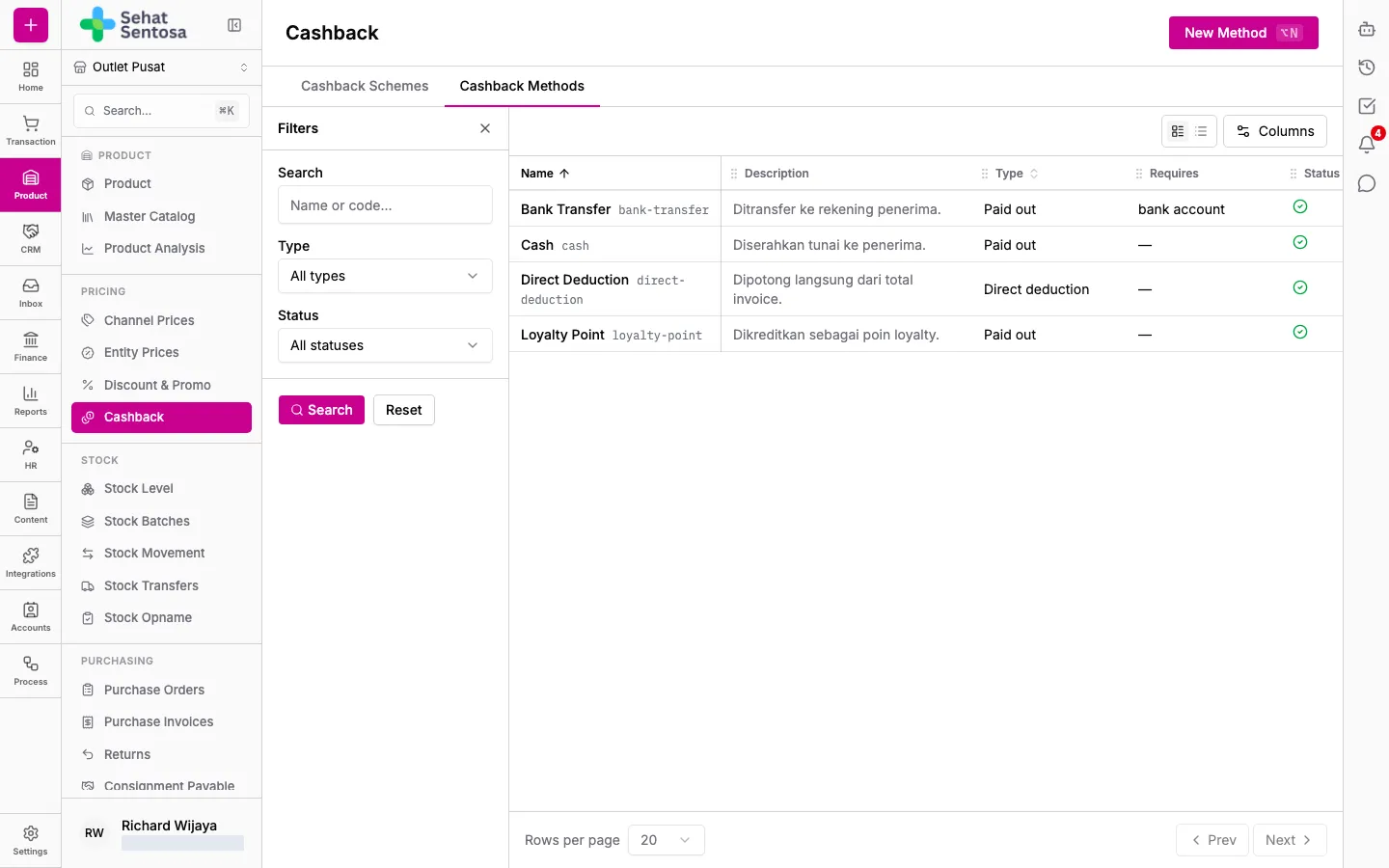
Only organization owners and admins see this menu. Open Product & Inventory → Pricing → Cashback. The page has two tabs: Cashback Schemes and Cashback Methods.
1. Create a cashback method
Section titled “1. Create a cashback method”A method sets how cashback is given. You usually set it up once.
- Open the Cashback Methods tab and click New Method.
- Enter a Code (for example
partner-bank-x) and a Name. - Tick Direct deduction (reduces the invoice — nothing paid out) if cashback reduces the invoice and nothing is paid out.
- For paid-out cashback, pick Requires beneficiary account type, such as Bank Account, E-Wallet or Cash.
- Tick Active and save.
2. Create a cashback scheme
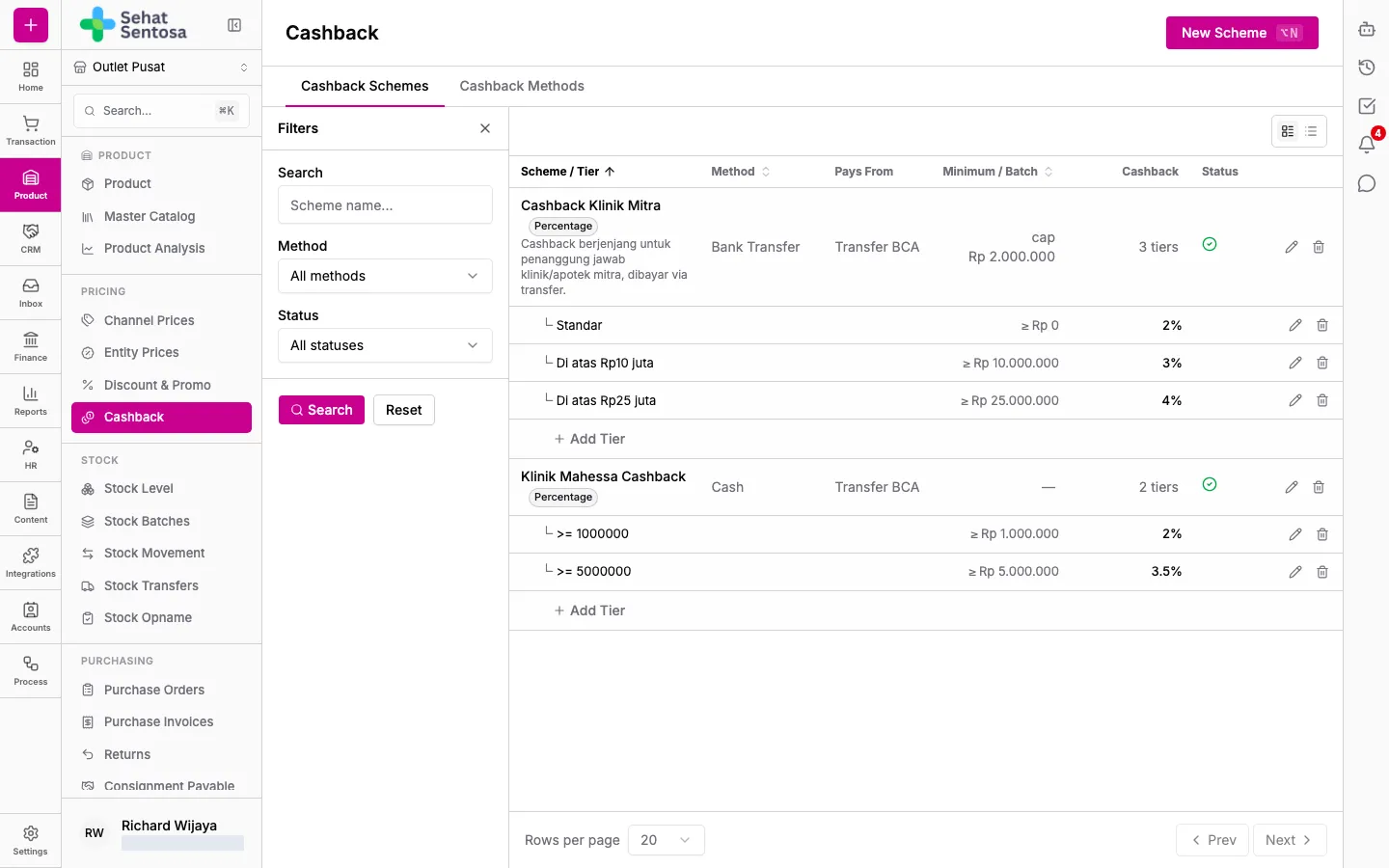
Section titled “2. Create a cashback scheme”- Open the Cashback Schemes tab and click New Scheme.
- Enter a Name (for example “Standard 5% Cashback”) and pick a Cashback Method.
- For a paid-out method, pick the Outbound Payment Channel: the account cashback is paid from.
- Pick a Cashback Type: Percentage of total amount, Fixed Amount (IDR) or Fixed Batch Cashback. Every tier in a scheme uses the same type.
- Pick Tier Threshold Based On: Amount (IDR) or Quantity (base units).
- For Fixed Batch Cashback, pick Cashback Per Complete Batch (Percentage or Fixed Amount (IDR)).
- Optionally fill in Max Cashback (optional), tick Active and save.
The scheme’s page opens once it’s saved.
The Cashback Schemes list shows each scheme with its tiers: method, the account it pays from (Pays From), the cap, each tier’s cashback, and status. Use the pencil and bin icons on a row to edit or delete a scheme or tier, and Add Tier under a scheme to add a tier straight from the list.
3. The scheme page
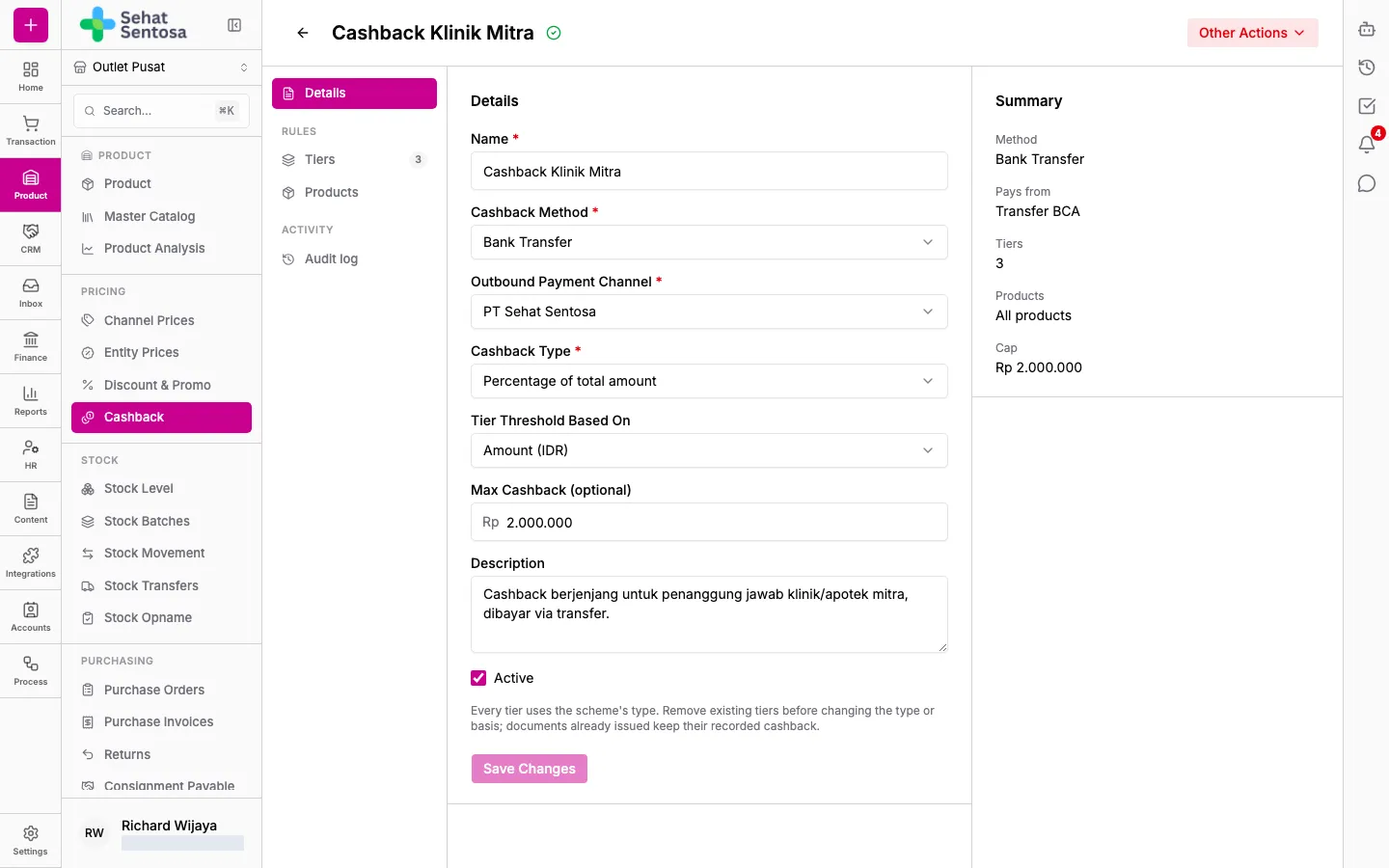
Section titled “3. The scheme page”Click a scheme’s name in the list to open its page. The left nav has Details, Tiers, Products (under Rules) and Audit log (under Activity). To delete the scheme, open the other-actions menu at the top right and pick Delete.
Details
Section titled “Details”Every scheme setting (name, method, payment channel, cashback type, threshold basis, cap, description and Active) is edited in place. Click Save Changes to save, or Discard to undo your edits. The Summary panel on the right shows the method, Pays from, the number of tiers and products, and the Cap.
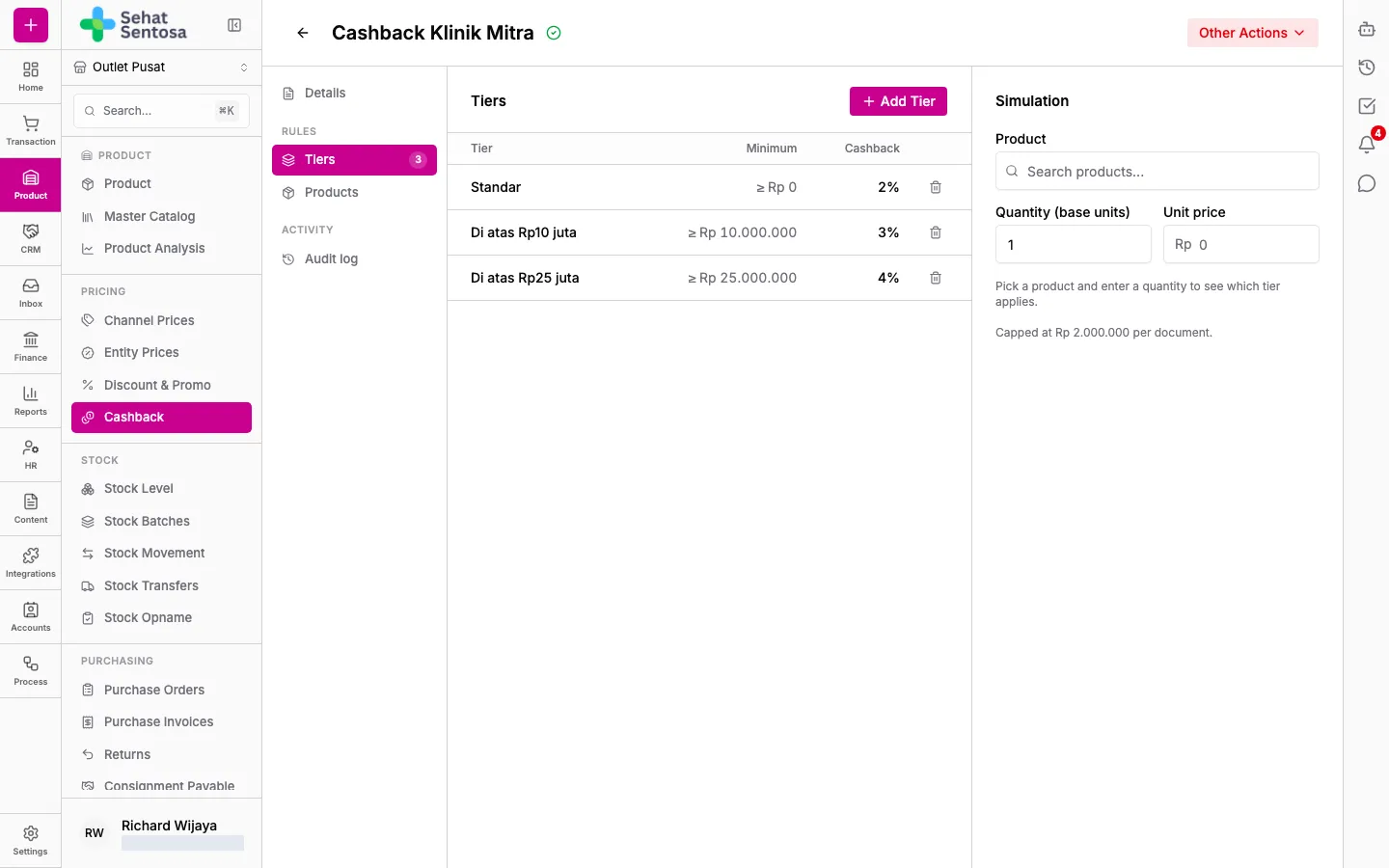
- Open Tiers and click Add Tier.
- Enter a Tier Name and the threshold: Minimum (IDR) or Minimum (base qty), or Batch Size for batch cashback.
- Fill in Discount Percent or Discount Amount, depending on the scheme type.
- Save. The highest tier reached applies.
Click a tier’s row to edit it, or the bin icon to remove it.
Stacked tiers. In a percentage scheme (including Fixed Batch Cashback paid as a percentage), a tier can build on a lower tier:
- Give the tier a higher threshold than the tier it builds on.
- Under Percent, pick On top of <tier> (x%) instead of Flat percent.
- Enter the Extra Percent. The lower tier’s percent applies first, then the extra percent comes off what remains. For example, 10% then 5% more = 14.5% in total.
A stacked tier follows its base tier when that tier’s percent changes. If you remove the base tier, the tiers built on it keep their current total as a flat percent.
Simulation
Section titled “Simulation”The Simulation panel beside the tiers works out the cashback for a sample sale, using the same calculation as invoices:
- Pick a Product (only the scheme’s products, if the scheme is limited to some).
- Enter a Quantity (base units) and, if needed, change the Unit price.
- Read the Subtotal, the Tier reached, the Cashback and the Total after cashback. The tier that applies is marked Active in the table. Next tier shows the next threshold, and for batch cashback, Batches shows how many complete batches there are and what’s left over earning nothing.
Products
Section titled “Products”Products sets which products earn cashback. When it’s empty, cashback applies to every product.
- Click Add Product, pick products and variants under Products and variants, and save.
- The list is grouped by product, with its variants underneath, each with its SKU and Base unit.
- Click the bin icon on a product row to remove the whole product, or on a variant row to remove just that variant.
Audit log
Section titled “Audit log”Audit log lists the scheme’s change history, newest first.