
Importing products
There are three ways to add many products at once:
- Import CSV with the Medivy template, best for data that is already clean.
- Mapped import (Excel/CSV), for a file with any column layout, such as an export from your old system.
- Master Catalog, Medivy’s reference catalog, which the organization owner can import from directly.
Import a CSV with the template
Section titled “Import a CSV with the template”- Open Product & Inventory → Product → Product.
- Click Import / Export, then choose Import CSV. The Import Products panel opens.
- Click Download CSV Template and fill it in. Its columns are
product_name,category,make,tags,base_unit,variant_name,sku,barcode,buy_price,sell_price,unit_codeandunit_sell_price. Onlyproduct_nameis required. - Pick the file in CSV File and click Import.
- Check the summary: products and variants created, rows skipped, and rows that failed with the reason.
Mapped import (Excel/CSV)
Section titled “Mapped import (Excel/CSV)”This import runs in the background, so it suits large files.
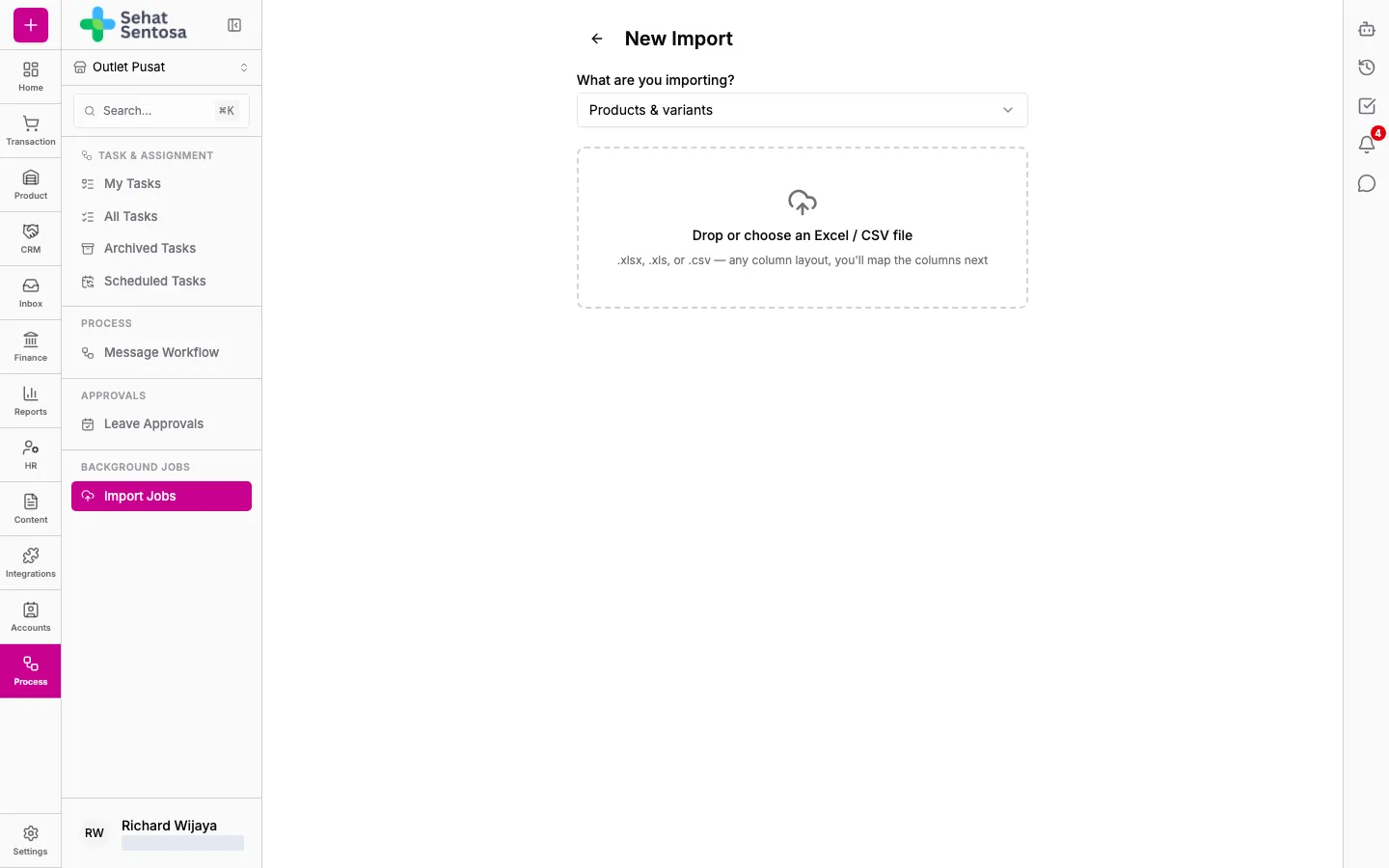
- In the catalog, click Import / Export → Mapped import (Excel/CSV). The New Import page opens with Products & variants already selected.
- Drag an
.xlsx,.xlsor.csvfile onto Drop or choose an Excel / CSV file, or click to pick one. Only the first sheet is read. - On the Map columns page, check each row: File column (the column in your file), Sample values and Maps to (the Medivy field). Medivy suggests a mapping from the column names, including Indonesian names such as “nama produk”, “harga jual” or “satuan”. Choose — don’t import — for columns you don’t need.
- Make sure Product Name is mapped. Required fields that aren’t mapped yet are listed under Still unmapped.
- Set the options:
- First row is a header (skip it): tick it if the first row holds column titles.
- On error: Skip the row, continue or Stop the whole import.
- Duplicates: Skip duplicates (products that already exist are skipped).
- Click Start import.
- The progress page shows how many rows have been processed. You can leave the page; a notification arrives when it’s done.
- When it finishes, check Imported, Skipped and Errors, and the Row errors list if there is one.
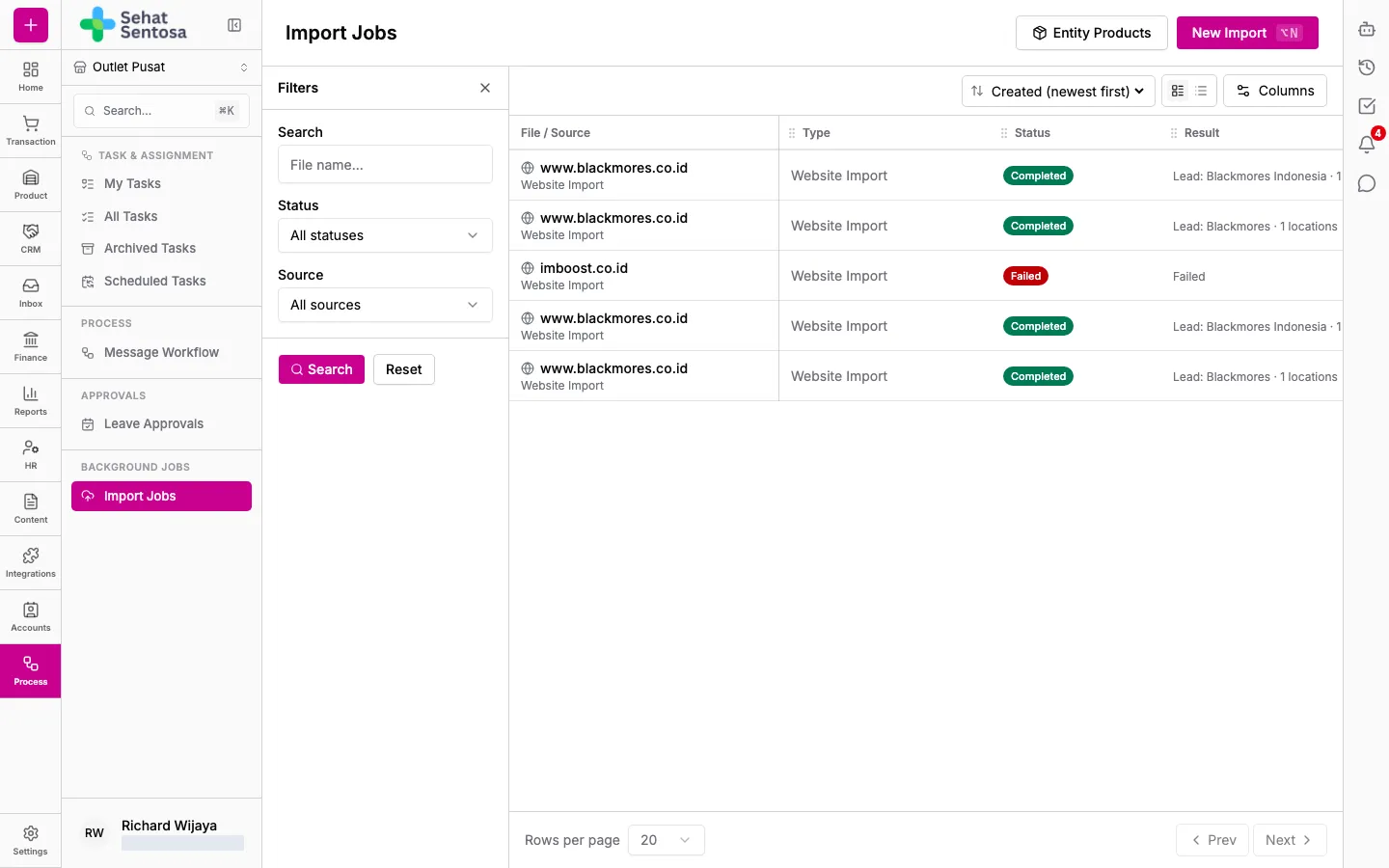
Every import is listed under Process → Background Jobs → Import Jobs. Click New Import there to start another one.
Import from the Master Catalog
Section titled “Import from the Master Catalog”The Master Catalog holds reference product data (manufacturer, composition, classification, BPOM number, packaging) shared with every organization.
- Open Product & Inventory → Product → Master Catalog.
- Search in Search master catalog…. Products already in your catalog are marked Already have.
- Tick the products you want. Your selection is kept while you page through or search.
- Click Import selected. To import only some variants, click the product row, pick the variants under Variants to import, then click Import Selected.
- When it’s done, Medivy shows how many new products were imported and how many were skipped because you already have them.