
Sign in to the B2B portal
The B2B portal has no passwords. You sign in with the email or WhatsApp number the pharmacy used to invite you, or with a Google account that uses that email.
Activate your invitation
Section titled “Activate your invitation”When the pharmacy invites you, you get an invitation by email or WhatsApp.
- Open the link in the invitation.
- The Aktifkan akses Anda (Activate your access) page opens. Complete the security check (confirm you’re not a bot).
- Click Activate. You’re signed in to the portal.
Sign in with email
Section titled “Sign in with email”- Open the portal’s sign-in page (Portal B2B Medivy) and choose the Email tab.
- Enter your email and click Email me a sign-in link.
- You see Periksa email Anda (Check your email). Open the email and click the sign-in link.
- You’re signed in.
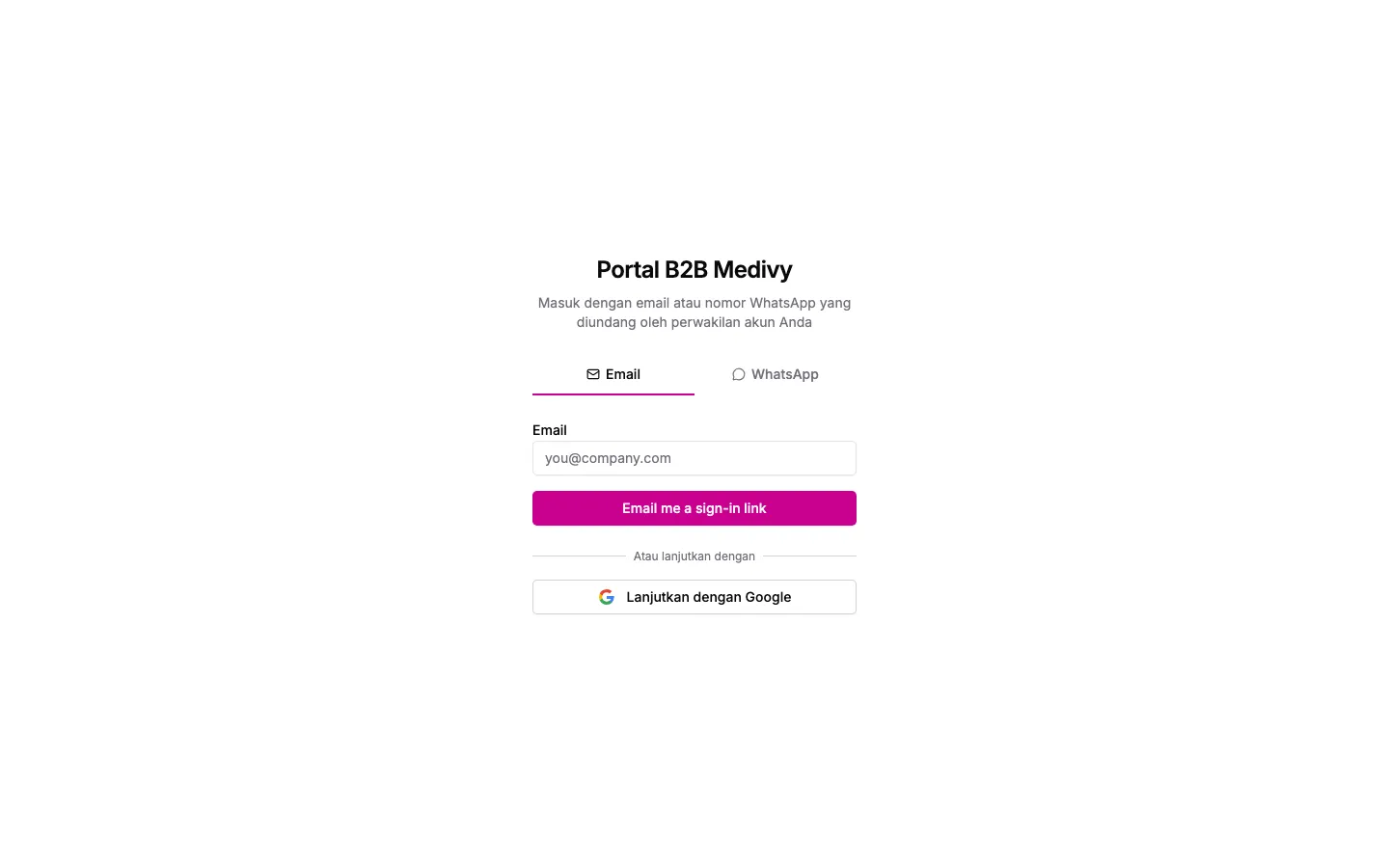
Sign in with WhatsApp
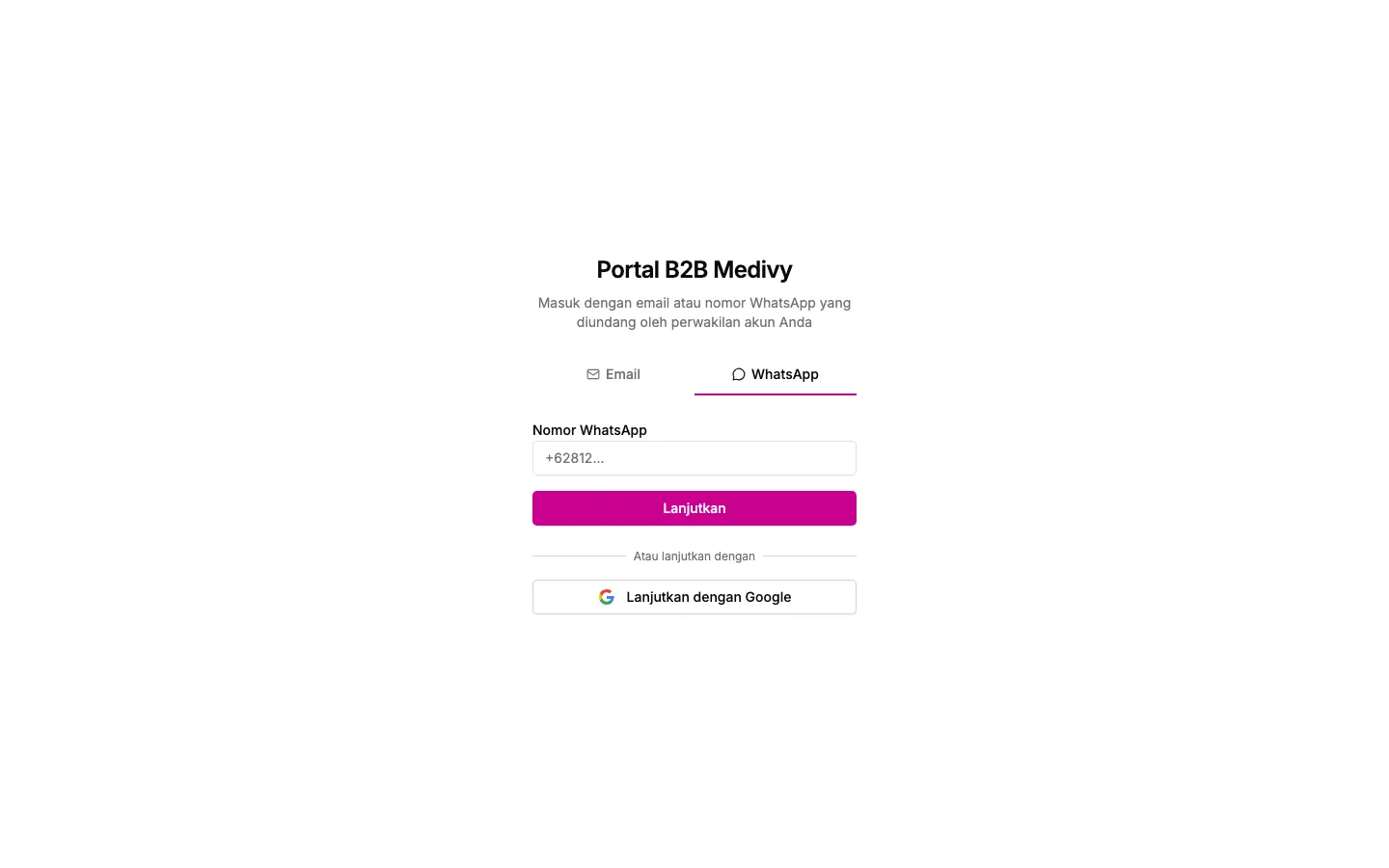
Section titled “Sign in with WhatsApp”- Choose the WhatsApp tab.
- Enter your Nomor WhatsApp (WhatsApp number).
0812…,62812…and+62812…all work; the portal normalizes it. - Click Lanjutkan (Continue).
What happens next depends on the pharmacy’s setup. You’ll see one of these two screens.
If you see a Kode (Code) field:
- The pharmacy sends a code to your WhatsApp.
- Type it into Kode and click Verify & Sign In.
- If you typed the wrong number, click Use a different number.
If you see a Kode masuk (Login code) and a WhatsApp button:
- The portal shows a Kode masuk (login code).
- Click Buka WhatsApp & kirim pesan (Open WhatsApp & send message). WhatsApp opens with a pre-filled message.
- Check that the code in the message matches the one on screen, then send it.
- Go back to the portal. It continues on its own (“Waiting for your message…”) and signs you in.
To cancel and use another number, click Batal (Cancel).
If you see Proses masuk tidak dapat diselesaikan (sign-in could not be completed), read our WhatsApp reply. It tells you why, for example that your number has no portal access yet. If you see Sesi masuk ini kedaluwarsa (this sign-in expired), click Batal and start again.
Sign in with Google
Section titled “Sign in with Google”Under Atau lanjutkan dengan (Or continue with), click Lanjutkan dengan Google (Continue with Google) and choose your Google account. This only opens your portal account if the Google email is the one the pharmacy invited.
If you see “Belum ada akun tertaut”
Section titled “If you see “Belum ada akun tertaut””Belum ada akun tertaut (No account linked yet) means you signed in, but that email or number isn’t linked to any business account yet.
- Click Sign out & try a different email and sign in with another invited email or number.
- If that doesn’t work, ask your account rep at the pharmacy to invite you.
Sign out
Section titled “Sign out”Click your name at the bottom left and choose Logout.