
Tax settings (PPN)
The Tax page controls how Medivy calculates PPN (VAT) on sales and purchases. Set it up when you start using Medivy, when your PKP status changes, or when a tax regulation changes.
Go to Account & Settings → Finance → Tax.
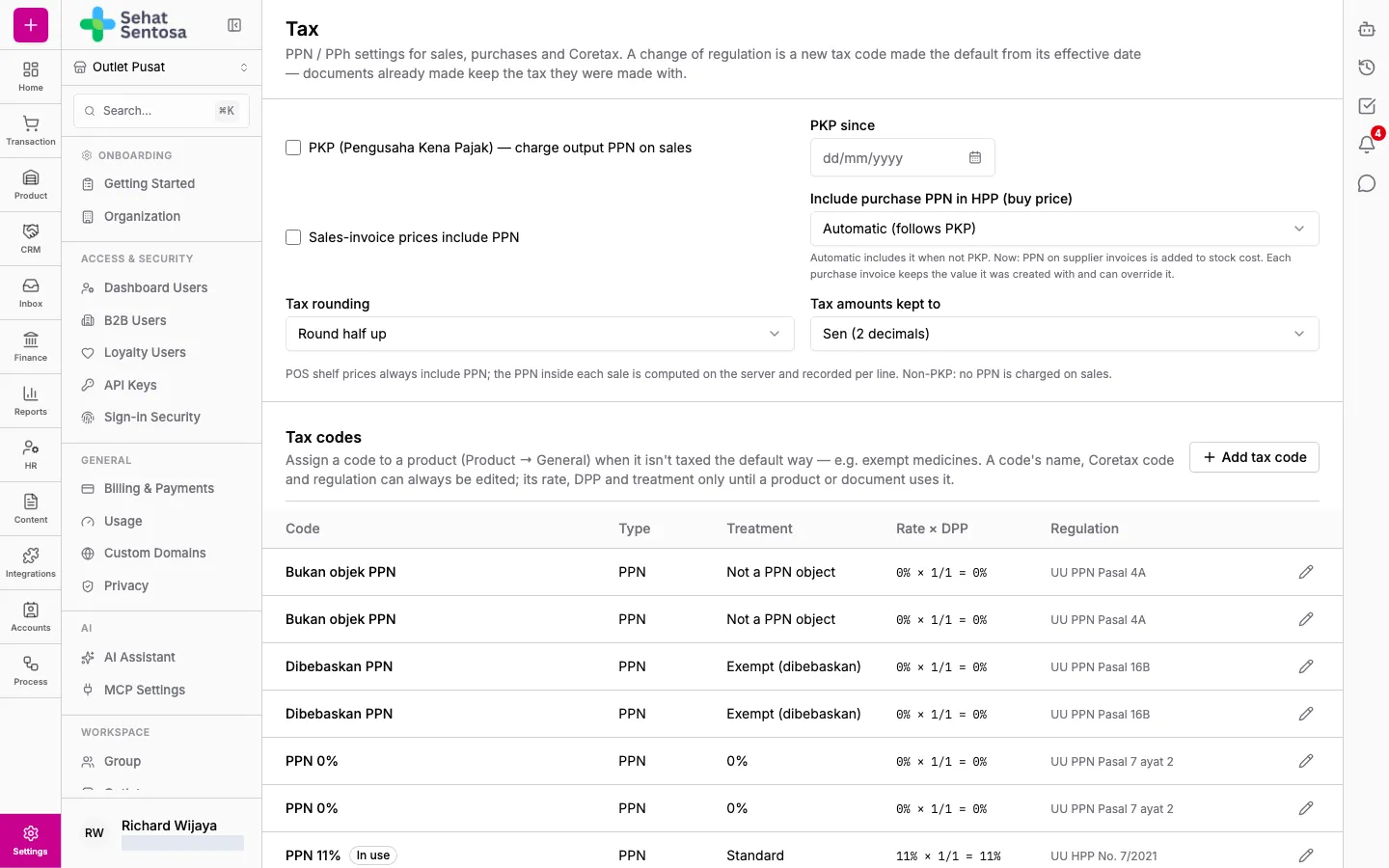
Set the tax profile
Section titled “Set the tax profile”The top of the page is the tax profile. Each change saves immediately.
- Tick PKP (Pengusaha Kena Pajak) if your business is a registered VAT payer that charges output PPN on sales. If unticked, no PPN is charged on sales.
- Fill in PKP since with your PKP registration date. This is for information only.
- Tick Sales-invoice prices include PPN if prices on sales invoices already include PPN.
- Choose Include purchase PPN in HPP (buy price) — whether PPN on supplier invoices is added to stock cost (HPP):
- Automatic (follows PKP): included when you are not PKP. When PKP, it is booked as input PPN (PPN Masukan).
- Always include or Never include.
- Choose Tax rounding: Round half up or Round down (floor).
- Choose Tax amounts kept to: Sen (2 decimals) or Whole rupiah.
Add a tax code
Section titled “Add a tax code”The Tax codes section lists your organization’s tax codes. Use a code for products that aren’t taxed the default way, such as PPN-exempt medicines.
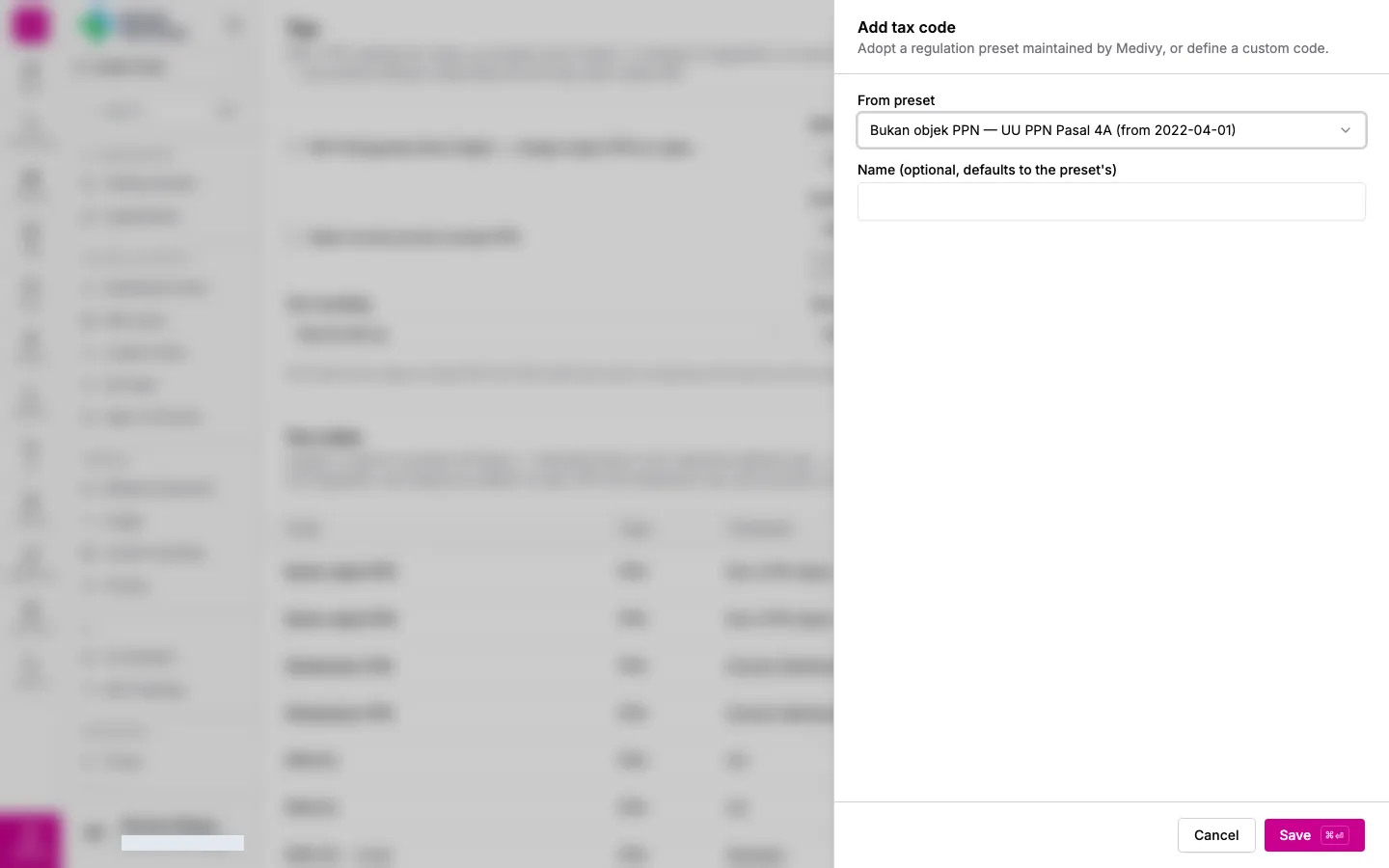
- In Tax codes, click Add tax code.
- In From preset, pick a regulation preset maintained by Medivy, or Custom… to define your own.
- For a preset, Name is optional (the preset’s name is used).
- For a custom code, fill in Name, Treatment (Standard, 0%, Exempt (dibebaskan), Not a PPN object, Luxury (PPnBM)), Rate %, DPP numerator and DPP denominator, and Regulation reference (e.g. PMK 131/2024).
- Save.
To use a code on a product, pick it on the product page, General tab.
Edit a tax code
Section titled “Edit a tax code”- Click a row in Tax codes to open Edit tax code.
- Name, Coretax code (optional), Regulation reference and Active (offered in pickers) can always be changed.
- Rate %, DPP and Treatment can only be changed while the code is unused.
Schedule a default code by date
Section titled “Schedule a default code by date”Default by date decides which code applies when a product has none. For each document, the newest date on or before the document’s date wins.
- Click Make default from….
- Pick the Tax code.
- Set Effective from.
- Save. The new row shows Scheduled until its date, then In effect. The previous default becomes Superseded.
Documents already made keep the tax they were made with. To cancel a default that is still scheduled, click Remove on its row.