
Viewing POS transactions
Every sale a cashier records in the POS app (medivy-pos) shows up in the dashboard. Use this page to watch today’s sales, look up older transactions, reprint a receipt or faktur, and correct a sale that was recorded wrongly.
Open the transaction list
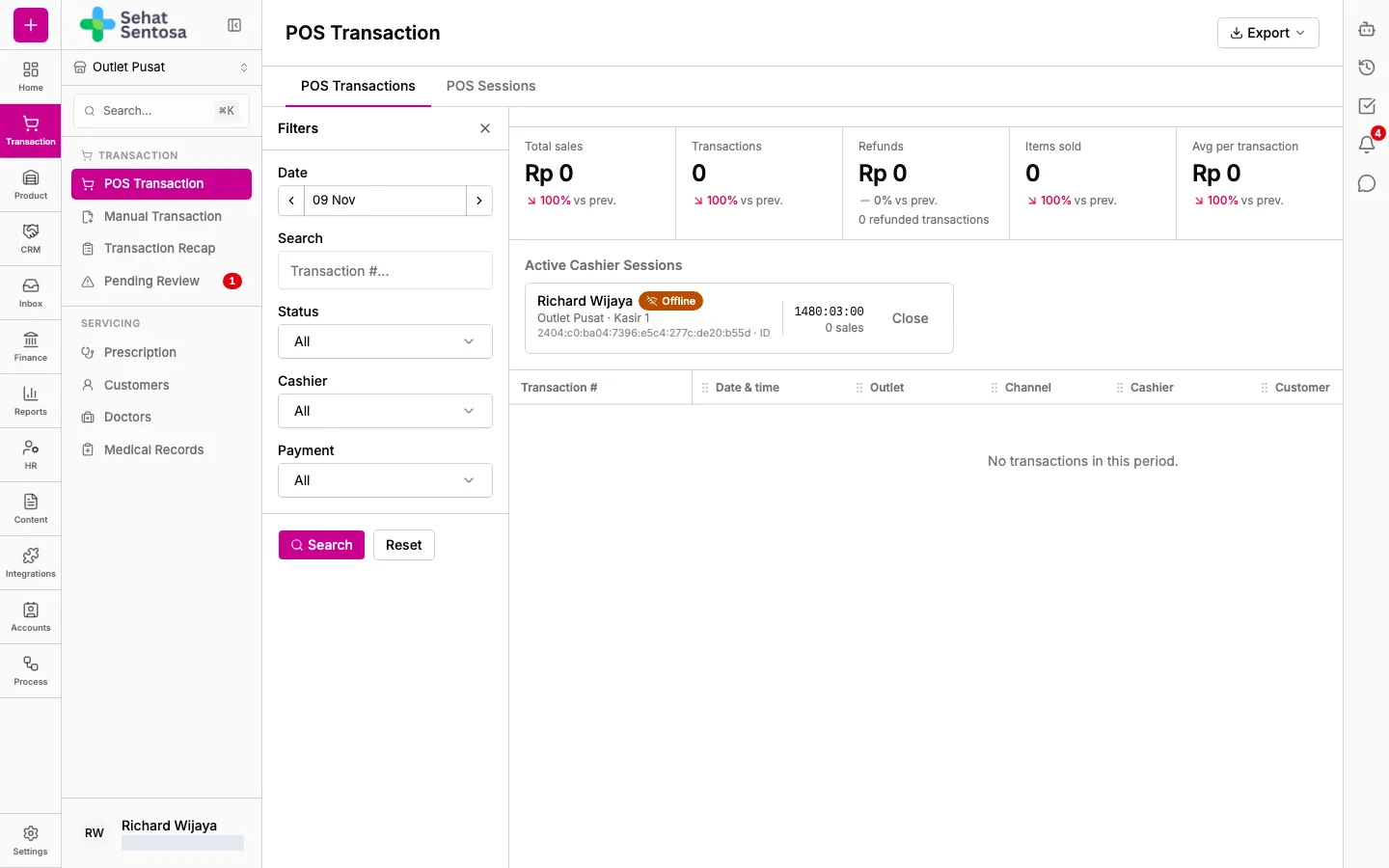
Section titled “Open the transaction list”- Go to Transaction → Transaction → POS Transaction.
- The page opens on the POS Transactions tab (the sales list). The POS Sessions tab holds cashier shifts; see Cashier sessions.
- The top of the page summarises the period: Total sales, Transactions, Refunds, Items sold and Avg per transaction.
- If you have access, Active Cashier Sessions lists the cashiers currently signed into medivy-pos and their status (Online, Offline, Signed out or Idle).
Filter transactions
Section titled “Filter transactions”Open the filter panel on the left, fill in what you need, then apply it:
- Date: the sale date range (up to one month at a time).
- Search: the transaction number.
- Status: Ongoing, Completed, Partially refunded, Refunded or Void.
- Cashier and Payment: a specific cashier, or a specific payment method or account.
The list loads 100 rows at a time. Click Load 100 more to see the next ones.
Open a transaction
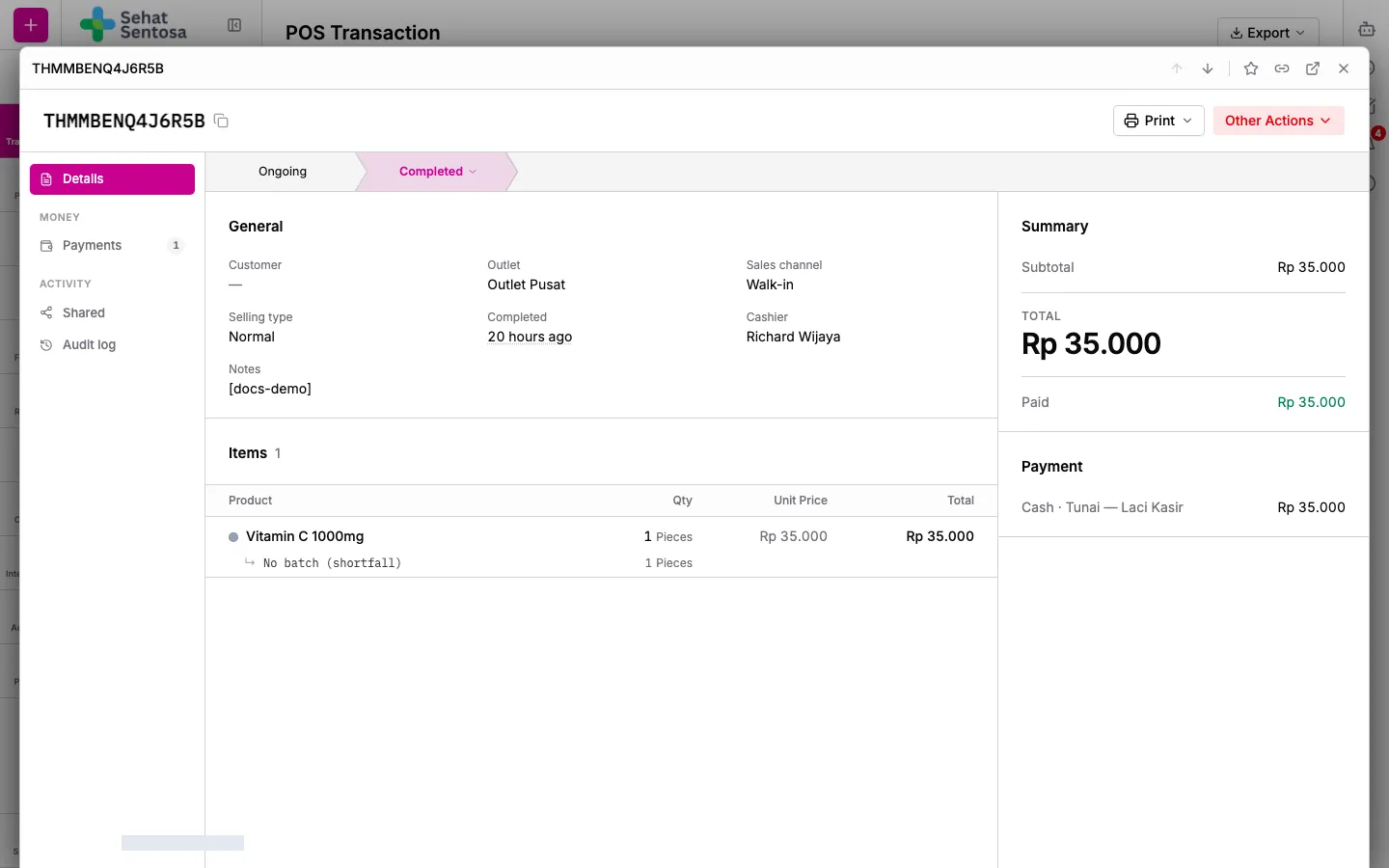
Section titled “Open a transaction”- Click a row in the list.
- Details shows the items sold (including the batch and expiry date (ED) used), discounts, tax, total, customer and loyalty points.
- The left navigation also has Prescription (only for sales with a prescription), Payments, Shared and Audit log (activity history, including refunds).
Print a receipt or faktur
Section titled “Print a receipt or faktur”- On the detail page, click Print.
- Choose Customer receipt (58 mm or 80 mm thermal receipt) or Sales invoice (faktur) (A4, with batch and ED).
- The document opens in a new tab, where you can print it, download a PDF or share it.
Print the receipt on a thermal printer
Section titled “Print the receipt on a thermal printer”The customer receipt can go straight to a thermal printer as text (ESC/POS), so it stays sharp on thermal paper.
- On the receipt tab, click Print receipt. The first time, the Printer setup dialog opens.
- Pick a Connection:
- USB or Bluetooth: in Chrome or Edge (Bluetooth means Bluetooth Low Energy printers). Click Pair printer and choose your printer.
- QZ Tray: for a printer installed in Windows or macOS. The QZ Tray app must be running on this computer. Click Find printers and pick one.
- Browser print: opens the browser’s print dialog. Use it only if the other options aren’t available.
- Pick the Paper width: 58mm or 80mm.
- Click Test print to try it, then Save and print.
The setup is saved on this device, so next time Print receipt prints straight away. To change it, click the settings icon next to Print receipt.
Void a sale
Section titled “Void a sale”Use Void for a Completed sale that was never actually paid as recorded, for example when the wrong payment method was picked. Stock is returned in full and no refund payment is recorded.
- On the detail page, open the other-actions menu and choose Void (or choose Void sale… on the status bar).
- Enter the reason and click Void Sale.
Change the sale date
Section titled “Change the sale date”If a sale was recorded on the wrong day (for example, yesterday’s sale entered this morning), you can move it to the day it really happened.
- On the detail page, open the other-actions menu and choose Change date.
- Fill in Real date & time (outlet local time) and Reason.
- Click Change date, then confirm.
The sale’s stock movements, journals, loyalty points and daily sales recaps move with it. The cashier shift stays the same, and the original date is kept in the history.