Consignment stock
With consignment, a supplier leaves stock at your pharmacy and is paid only for what sells (plus any lost or damaged units you agree to cover). The goods are received on a purchase invoice of type Consignment, sold like any other stock, and settled when the supplier comes back to collect.
Receive consignment goods
Section titled “Receive consignment goods”- Create an invoice in Product & Inventory → Purchasing → Purchase Invoices → New Invoice (see Recording purchase invoices).
- Set Invoice type to Consignment.
- Fill in the product lines with batch and expiry, then receive the goods as usual.
The goods come in as consignment batches. No payable is recorded yet, and the product’s default buy price doesn’t change.
Track consignment payable
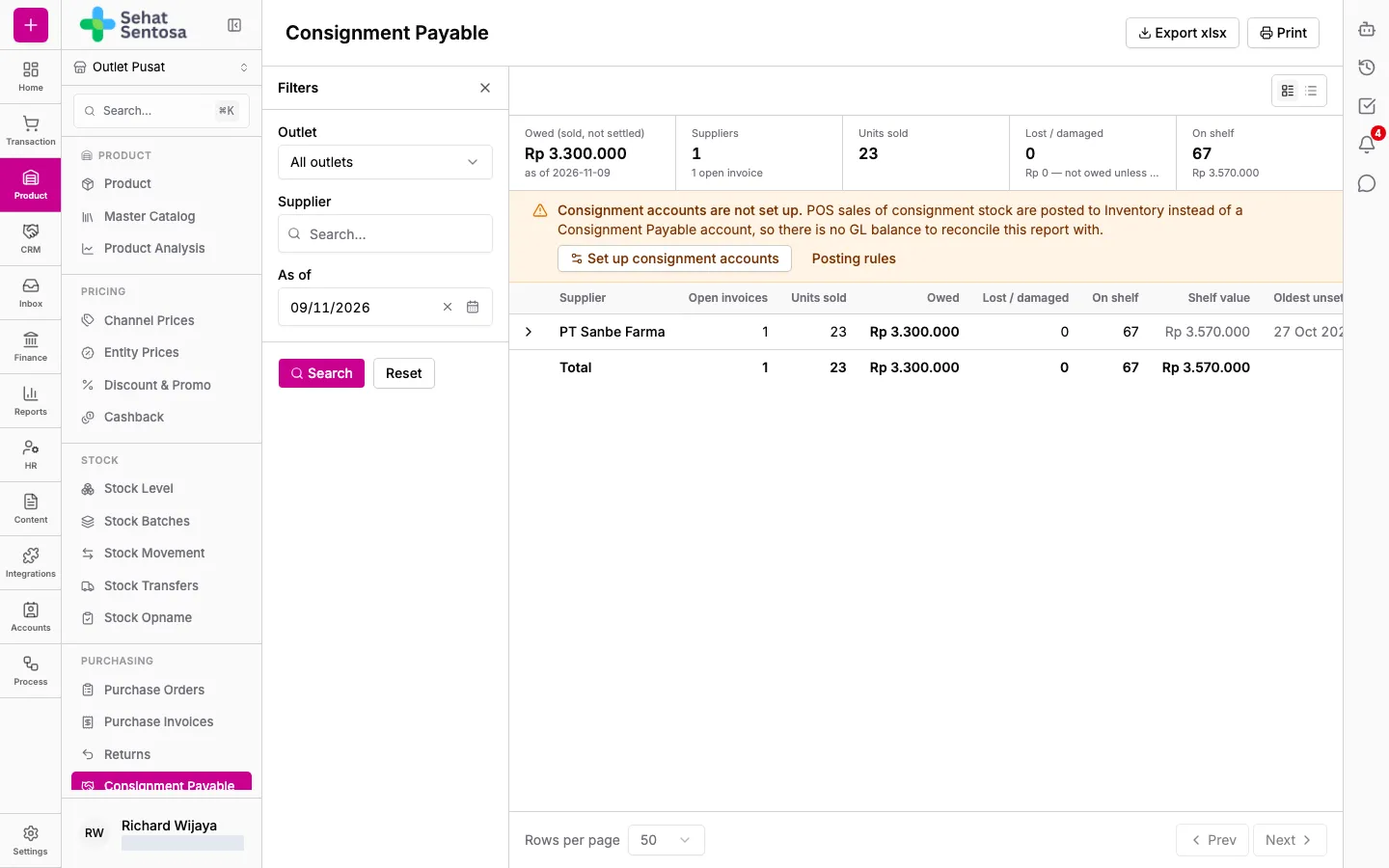
Section titled “Track consignment payable”- Open Product & Inventory → Purchasing → Consignment Payable.
- Filter by Outlet, Supplier and As of date.
- Review the summary: Owed (sold, not settled), supplier and open invoice counts, Units sold, Lost / damaged and On shelf.
- Expand a supplier to see each invoice and batch (received, sold, other out, remaining).
Use Export xlsx or Print to share the report.
Settle a consignment (Pay / Return)
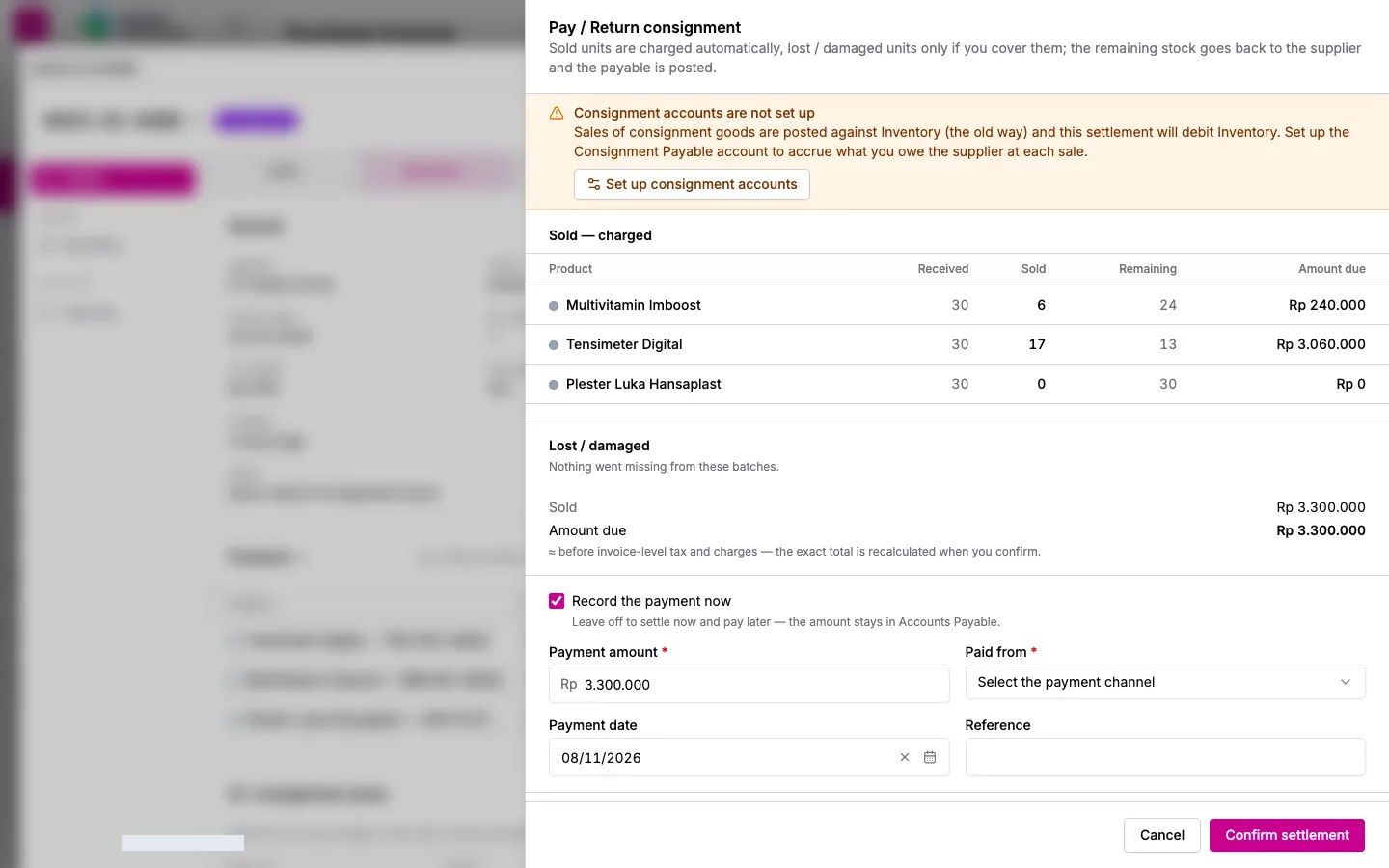
Section titled “Settle a consignment (Pay / Return)”- Open the consignment invoice and click Pay / Return….
- Check Sold — charged. Sold units are charged automatically.
- Under Lost / damaged, tick We cover this for any units you will pay for, and enter the qty and a Remark.
- Choose After paying:
- Pay and return the rest — the remaining stock goes back to the supplier.
- Pay and create a new consignment invoice — same as above, then the supplier’s new stock is received on a new consignment invoice.
- Turn on Record the payment now to pay immediately, and enter the Payment amount, Paid from and Payment date. Otherwise the amount stays in Accounts Payable to pay later.
- Click Confirm settlement.