
Supplier returns and return credit
Use a purchase return when goods go back to the supplier, for example because they are damaged, wrongly delivered or close to expiry. A return is always made from a purchase invoice whose goods were received at the active outlet.
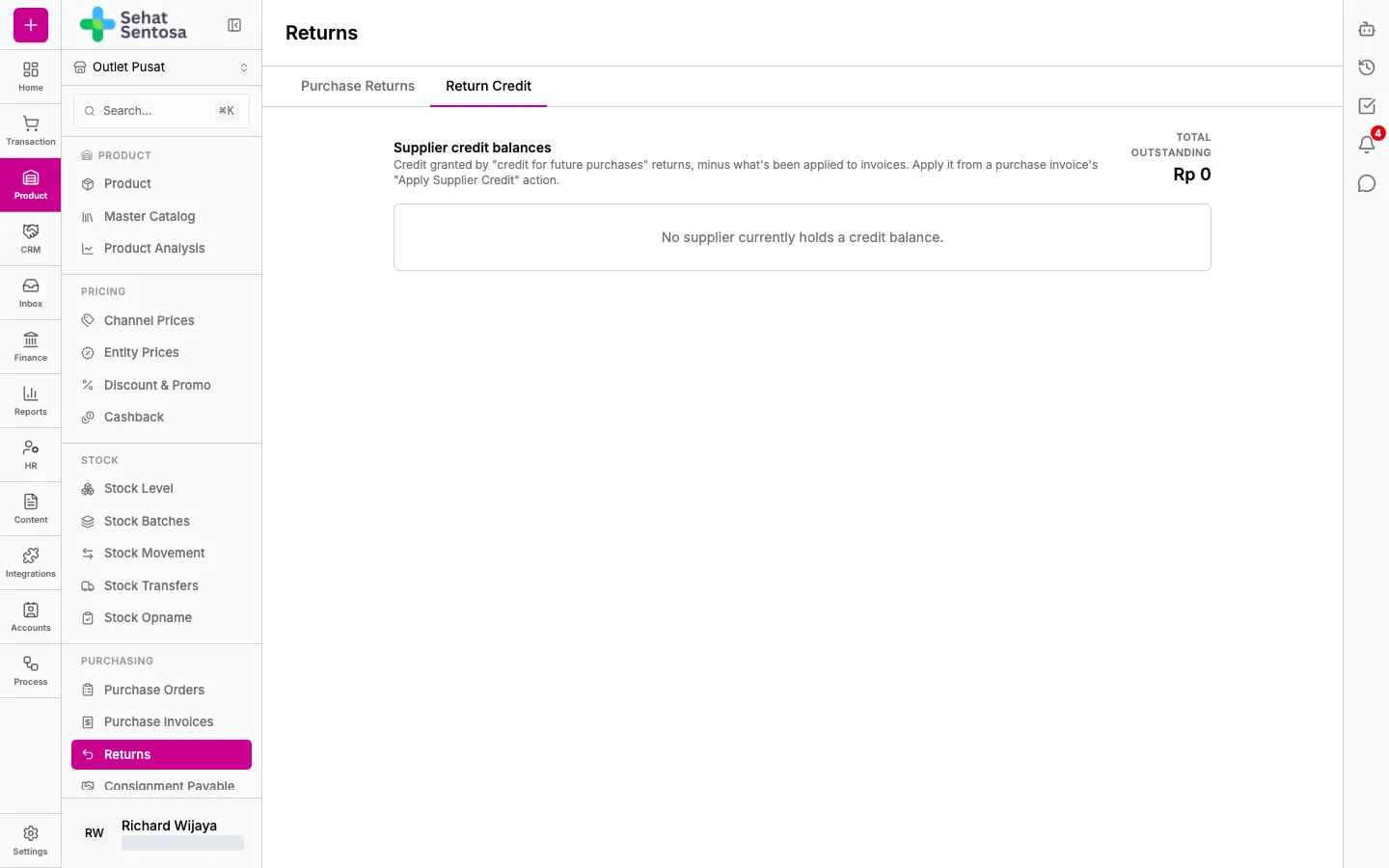
Menu: Product & Inventory → Purchasing → Returns. The page has two tabs: Purchase Returns (the list of returns) and Return Credit (credit balances per supplier).
Create a return
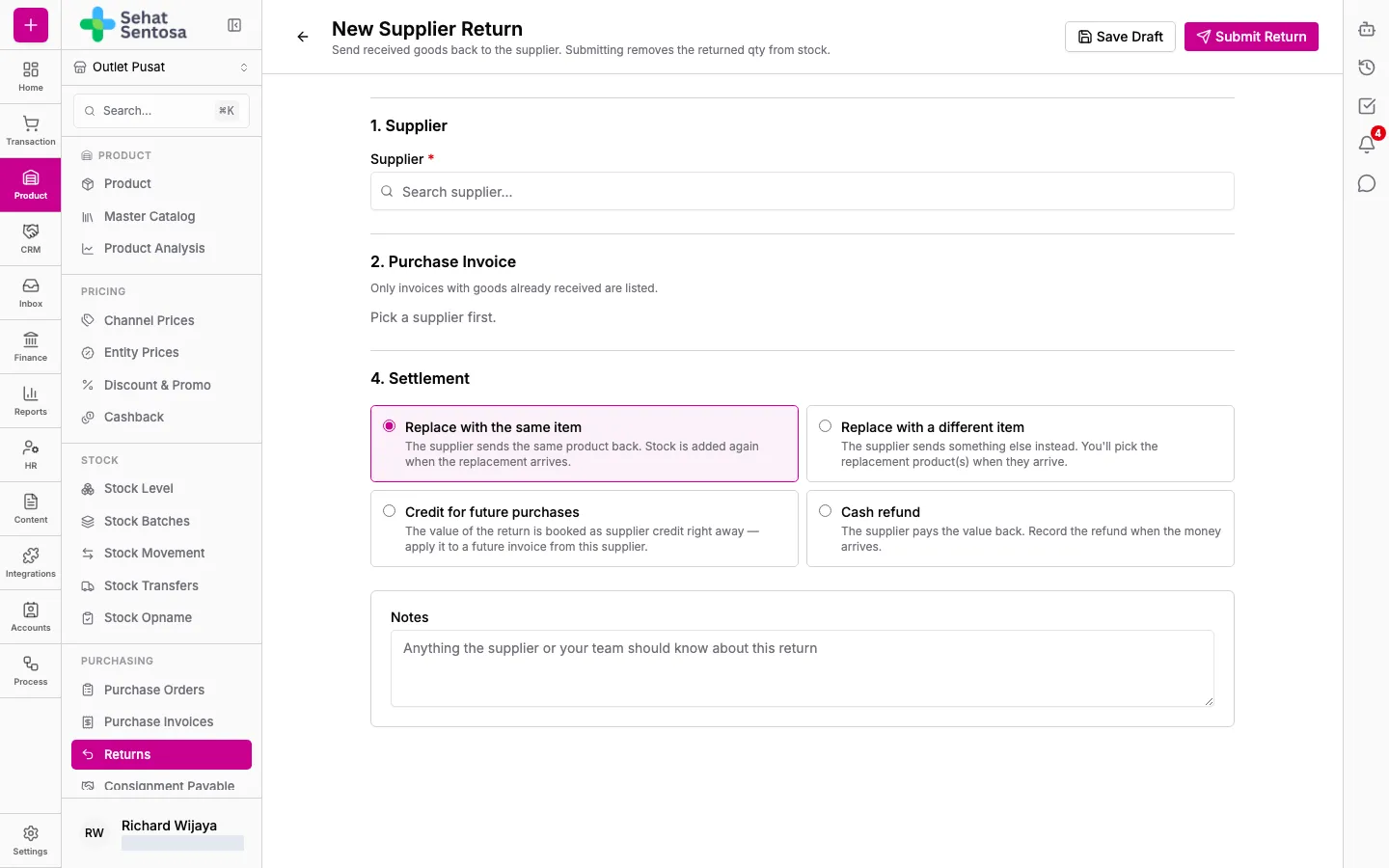
Section titled “Create a return”- Click New Return.
- 1. Supplier — choose the supplier.
- 2. Purchase Invoice — choose the invoice the goods came from. Only received invoices are listed.
- 3. Items to Return — enter Qty to return for each line (up to the Returnable qty), tick the return reasons, and add a line note if needed.
- 4. Settlement — choose how it is settled:
- Replace with the same item — the supplier sends the same product back; stock is added again when the replacement arrives.
- Replace with a different item — the supplier sends something else; you pick the replacement product(s) when they arrive.
- Credit for future purchases — the return value becomes supplier credit right away, for a future invoice.
- Cash refund — the supplier pays the value back; record it when the money arrives.
- Click Save Draft to keep it for later, or Submit Return to submit it now.
Complete a return
Section titled “Complete a return”Open the return and use the main button for its status:
- Awaiting replacement → click Record Replacement Received and enter the product, Batch No. and Expiry Date of the replacement goods. Stock is added.
- Awaiting refund → click Record Refund Received and enter the amount, date and receiving account.
- Credit for future purchases → the credit is granted on submit, and the return completes.
The final status is Completed.
Use return credit
Section titled “Use return credit”- Open the Return Credit tab to see each supplier’s Balance, Granted and Used credit.
- Click a supplier to see its credit ledger.
- Use the credit when creating a new invoice (Apply Supplier Credit) or on a received invoice (Apply supplier credit…). See Recording purchase invoices.
Creating and processing returns needs purchase.return.*.