
Customer invoices and payments
Invoices are for sales to business customers (accounts), such as clinics or other pharmacies, who pay later. Here you create an invoice, send it, and record each payment received until it is paid in full.
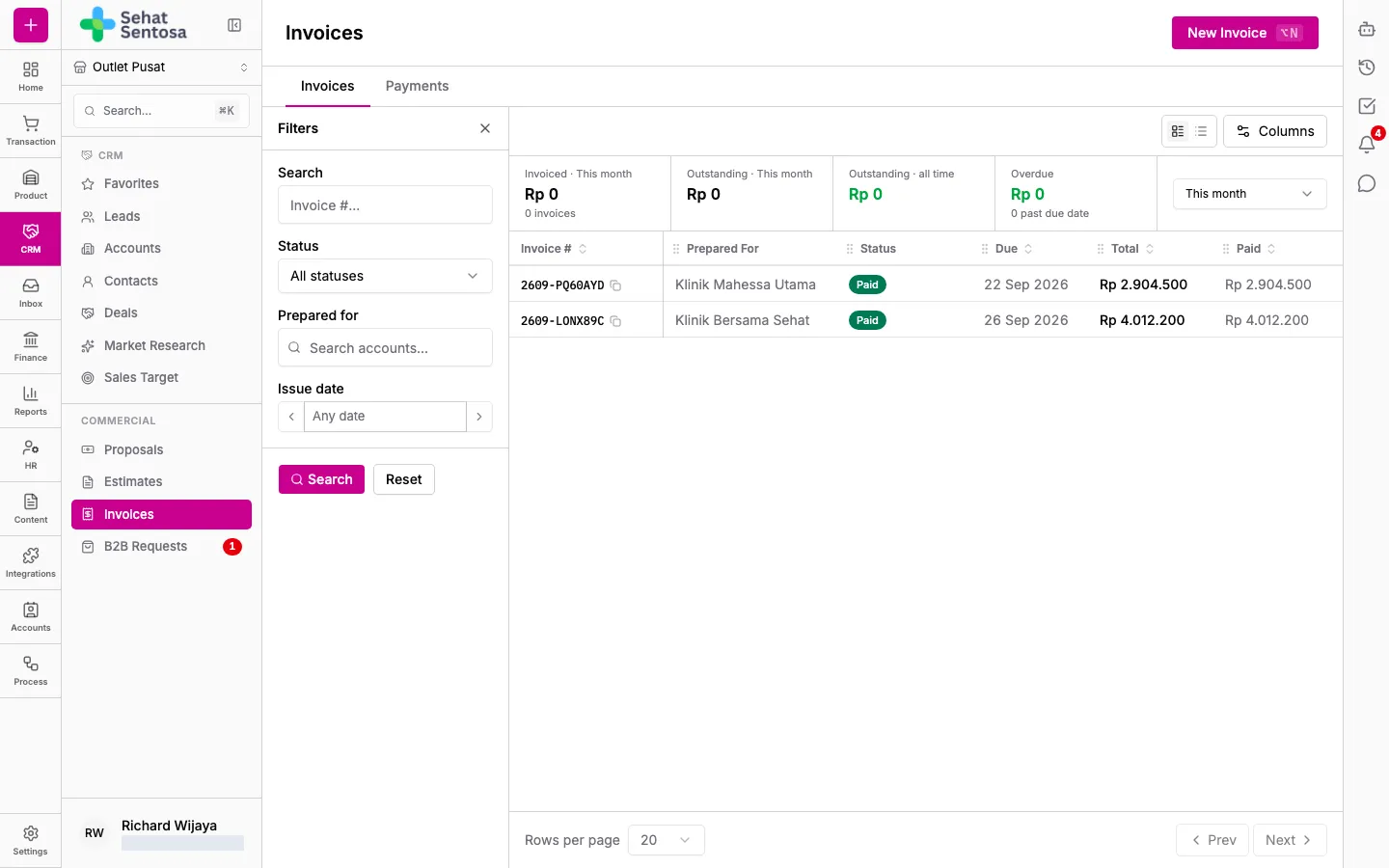
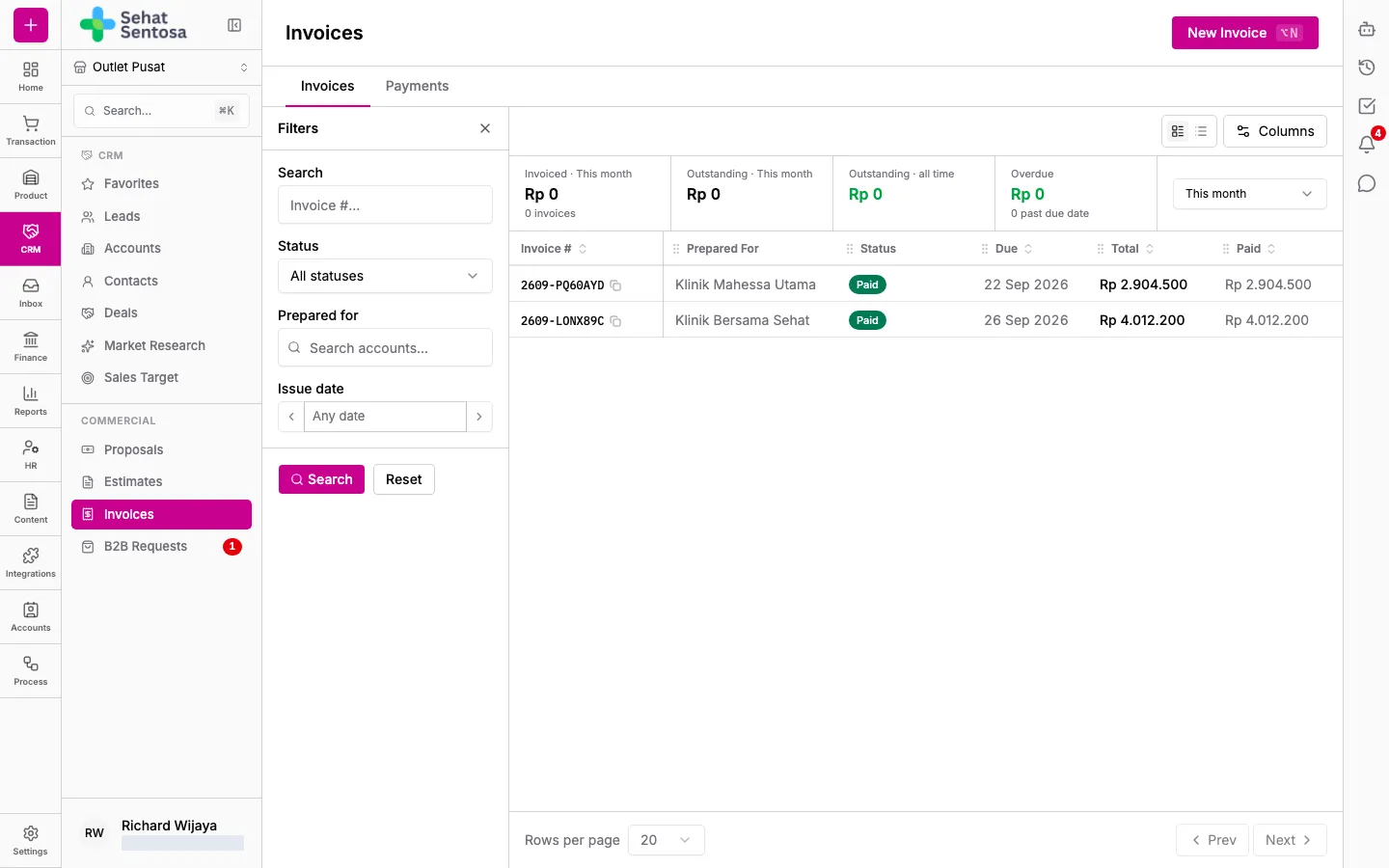
View the invoice list
Section titled “View the invoice list”- Go to CRM & Sales → Commercial → Invoices.
- The summary at the top shows the amount Invoiced, what is Outstanding, outstanding across all time, and what is Overdue.
- Use the filter panel to search by invoice number (Search), Status, customer (Prepared for) or Issue date.
Invoice statuses are Draft, Sent, Awaiting Payment, Partially Paid, Paid, Overdue, Cancelled and Void.
Create an invoice
Section titled “Create an invoice”- Click New Invoice.
- Choose the source:
- From Proposal: take the line items from a commercial proposal.
- From Estimate: take the line items from a price estimate.
- Blank / Builder: an empty invoice. Choose the customer under Prepared For, an optional contact, and the Sales Channel.
- Fill in the Issue Date, Due Date and any Notes.
- Save. The invoice is created as a Draft and its detail page opens.
- While it is a Draft, add lines with Add item and deductions with Add deductions.
- Click Send to mark the invoice as sent to the customer. Use the print button in the header to print or share the invoice.
Click a product name on a line to see the product’s details (SKU, barcode, sell price, variants and units) in a side panel without leaving the invoice.
In the Payment channel section, pick the account to be paid into under Pay into. Its bank, account holder’s name and account number show on the invoice and its printout, so the customer knows where to pay.
Record a payment
Section titled “Record a payment”- On the invoice detail page, open Payments.
- Click Record payment.
- Fill in Amount (IDR), Payment Date, Payment Channel (the account the money landed in) and Reference Number (for example, the transfer slip number).
- Save. The invoice becomes Partially Paid or Paid depending on what is left.
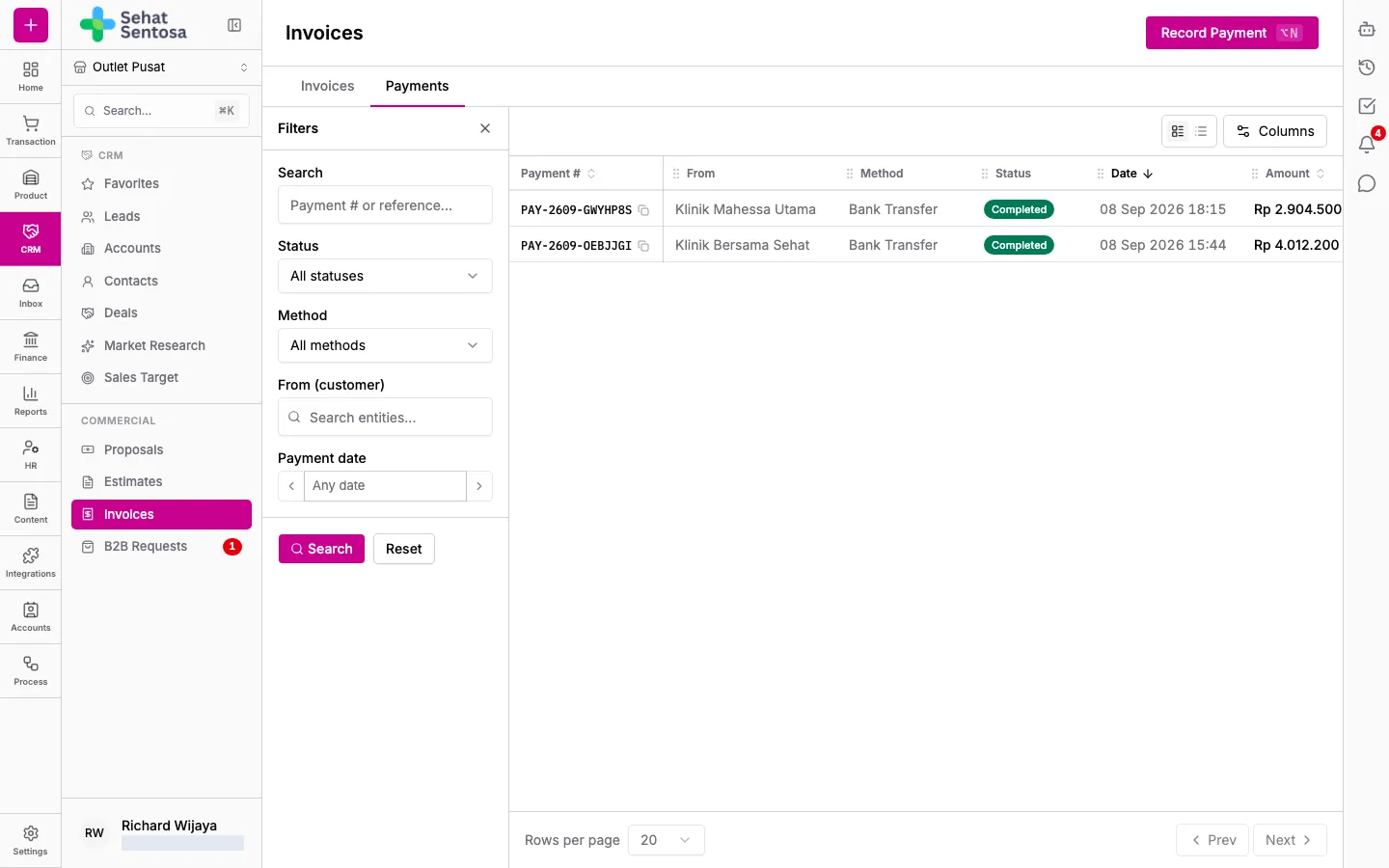
For a payment you can’t yet match to an invoice, open the Payments tab on the same page (CRM & Sales → Commercial → Invoices, then Payments) and click Record Payment. Any amount not yet allocated shows in the Unallocated column and can be allocated to an invoice later.
Online payment links
Section titled “Online payment links”Once your organization can take online payments (see Online payments), an unpaid invoice shows an Online payment link in its Payment channel section.
- Click Create Payment Link. The link is for what’s still owed.
- Click Copy to copy the link and send it to the customer, or Open to open it.
- The customer pays by QRIS, card, virtual account or e-wallet (whichever methods are on). The invoice is marked paid automatically when the payment comes in.
While a link is still valid, the invoice reuses it; its expiry shows under the link. Creating a link needs full commercial access (commercial.*) and payment-gateway rights (integration.paymentGateway.generateVa or integration.paymentGateway.*). Users without them see a note to ask an admin.
Cancel an invoice
Section titled “Cancel an invoice”Open the other-actions menu on the detail page:
- Cancel: for an invoice that isn’t paid yet.
- Void: also works on a paid invoice.
- Delete: only for a Draft invoice.
Cancel and Void require a reason. What happens to payments already received is set by your organization’s invoice policies in Settings.