
Signing in to the dashboard
You need a Medivy account that belongs to an organization. Accounts are created through an invitation from your organization’s owner or an admin.
Accepting an invitation
Section titled “Accepting an invitation”- Open the invitation email from Medivy and click the link. The Join organization page opens.
- If you don’t have a Medivy account yet, fill in Your name, New password (at least 8 characters) and Confirm password, complete the security check, then click Set password & join.
- If you already have an account with the same email, sign in first, then click Accept invitation.
Signing in
Section titled “Signing in”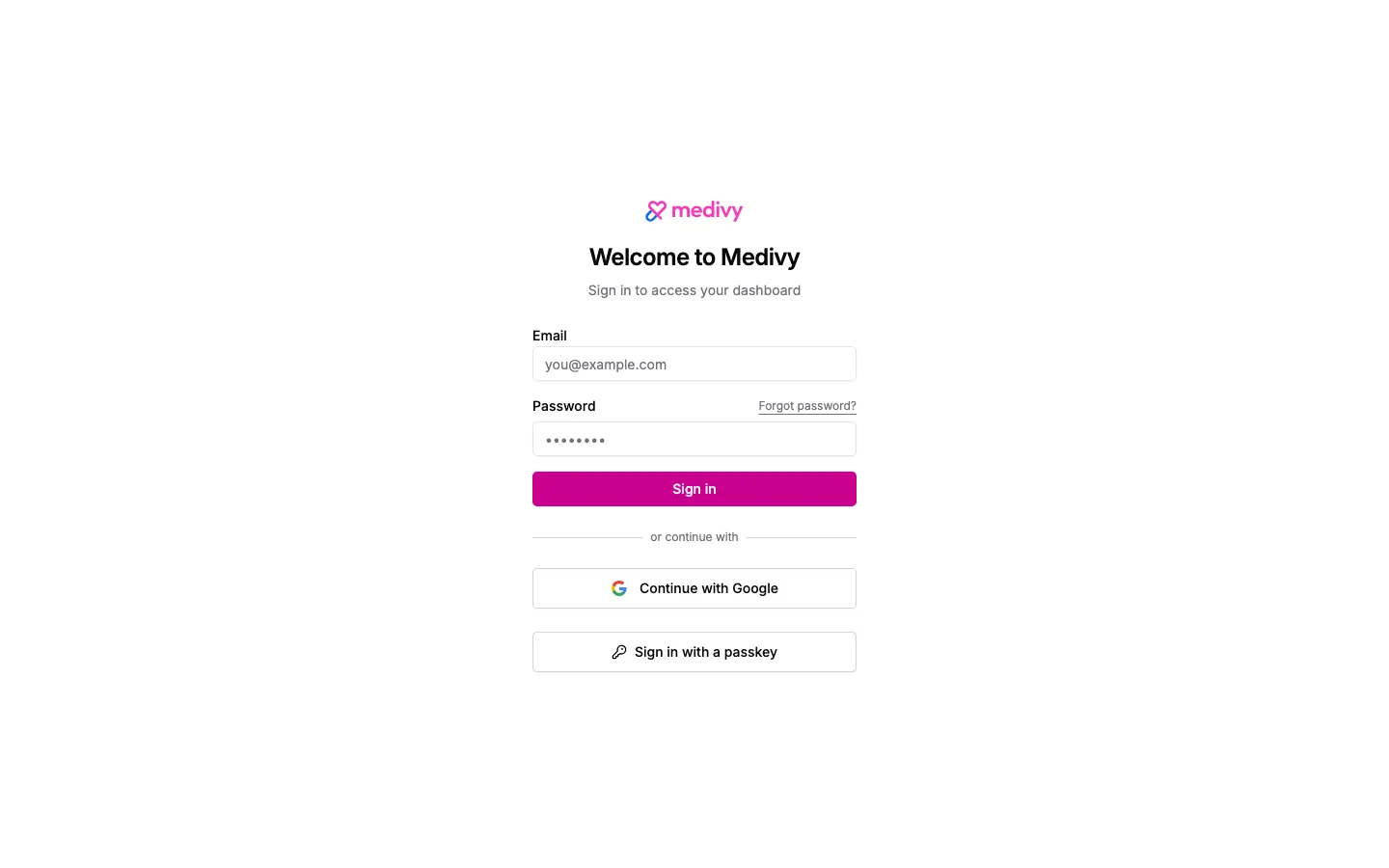
- Open the Medivy dashboard address in your browser.
- Enter your Email and Password, then click Sign in.
- Alternatively, click Continue with Google or Sign in with a passkey if you have set one up.
- If two-step verification is on, enter the 6-digit Verification code from your authenticator app and click Verify. Without your phone, click Use a backup code instead and enter one of your backup codes. Tick Trust this device for 30 days so this device doesn’t ask for a code again for 30 days (leave it unticked on a shared computer).
You land on your organization’s Overview page.
Forgot your password
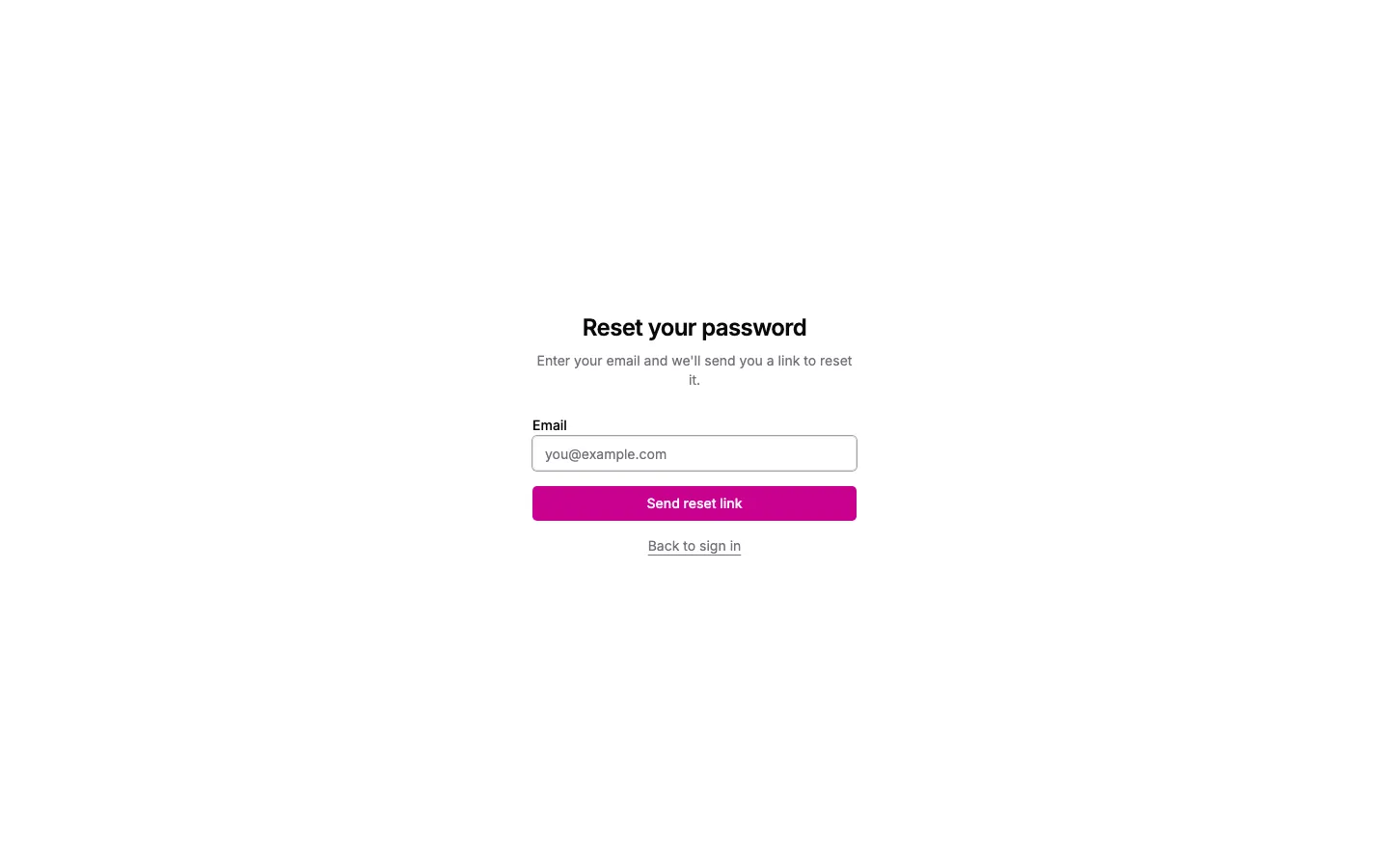
Section titled “Forgot your password”- On the sign-in page, click Forgot password?. The Reset your password page opens.
- Enter your email and click Send reset link. A confirmation appears. For security, it appears even if the email isn’t registered.
- Open the email from Medivy and click the link.
- Enter a New Password and Confirm Password (at least 8 characters), then click Reset Password.
- When Your password has been reset. appears, click Continue to sign in and sign in with the new password.
If you see This reset link is invalid or has expired., the link no longer works. Go back to the sign-in page and request a new one.
Click your name at the bottom of the sidebar and choose Help to open the guide for the screen you’re on.
Signing out
Section titled “Signing out”Click your name at the bottom of the sidebar and choose Logout.