
View stock levels
The Stock Level page shows the current quantity of every product variant at every outlet. Use it to check availability, find stock that is running low or not selling, and prepare purchase orders.
Go to Product & Inventory → Stock → Stock Level.
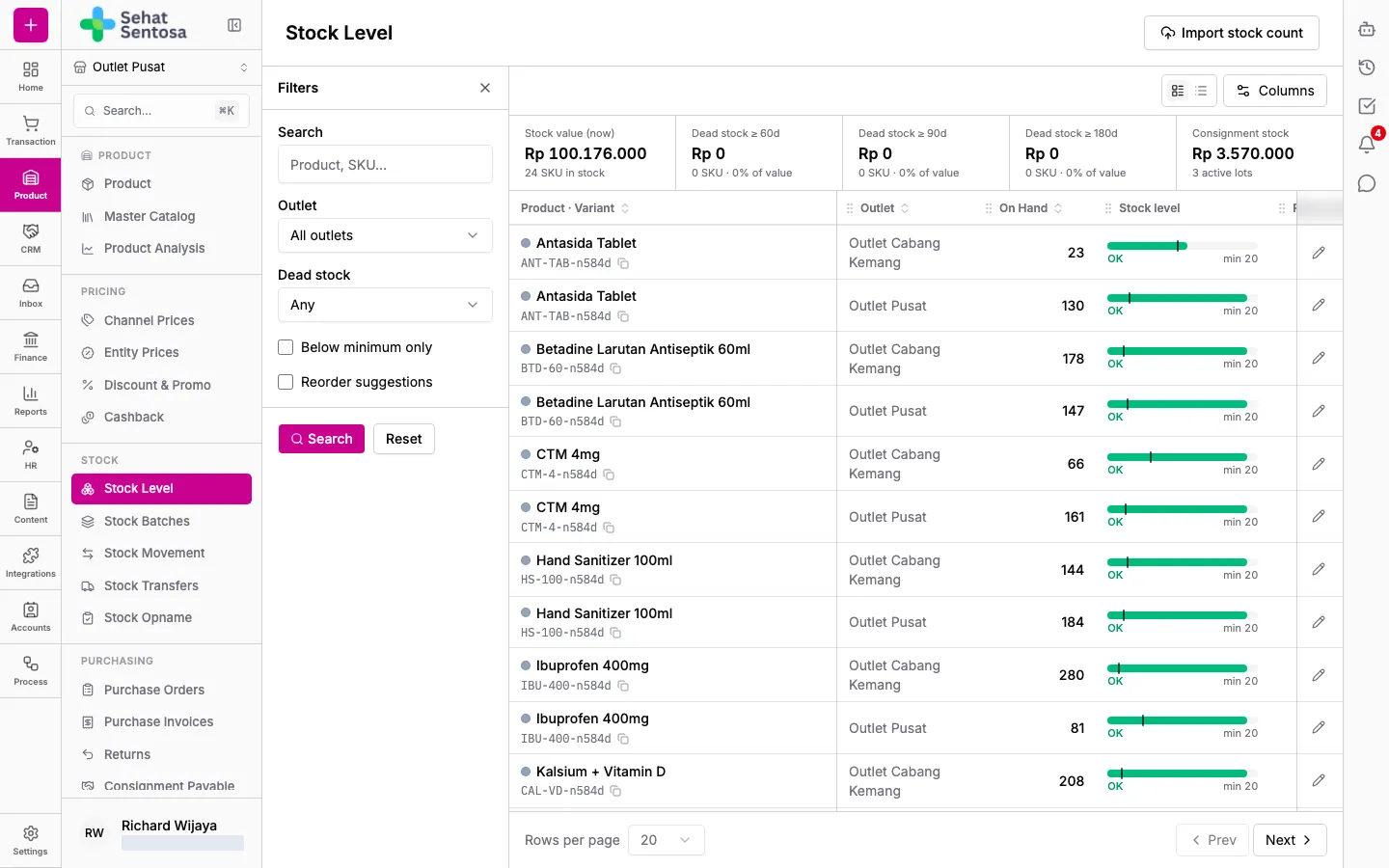
Reading the table
Section titled “Reading the table”Each row is one product variant at one outlet. The main columns:
- On Hand: the physical quantity recorded at the outlet.
- Reserved and In Transit: stock that is reserved or moving between outlets in a transfer.
- On Order: quantity on purchase orders that hasn’t been received yet.
- Min, Days Left (estimated days until it runs out), ABC (product class by contribution) and Value (stock value).
Above the table you’ll see Stock value (now), Dead stock (products with no sale in 60, 90 or 180 days) and Consignment stock. These figures are for the active outlet. Click a card to list the products behind it.
Click a row to open Stock History (the stock card): every stock movement for that variant at that outlet.
Filtering the list
Section titled “Filtering the list”- Open the filter panel on the left.
- Fill in Search (product name or SKU), pick an Outlet, or pick a Dead stock threshold.
- Tick Below minimum only or Reorder suggestions if needed.
- Click Search to apply, or Reset to clear.
Setting minimum and maximum stock
Section titled “Setting minimum and maximum stock”- Click the pencil icon (Edit min/max) at the right end of the row.
- Enter Min Stock and, if you want, Max Stock. Leave Max Stock empty for no cap.
- Save.
Minimum stock drives the Below minimum only filter and the reorder suggestions.
Creating purchase orders from reorder suggestions
Section titled “Creating purchase orders from reorder suggestions”- Tick Reorder suggestions in the filter panel and click Search. The table now shows Suggested, Last Supplier and Last Price.
- Select the rows you want to order.
- Click Create PO.
- In Create purchase orders, check each Qty (in base units) and pick a Supplier for any line that doesn’t have one.
- Click Create draft PO(s).
You get one draft purchase order per supplier at the active outlet. Continue with those drafts under Purchase Orders.