
Discounts, promotions and coupons
Promotions give product discounts, basket discounts, buy-X-get-Y deals or vouchers. Coupons are codes a customer redeems to get a specific promotion.
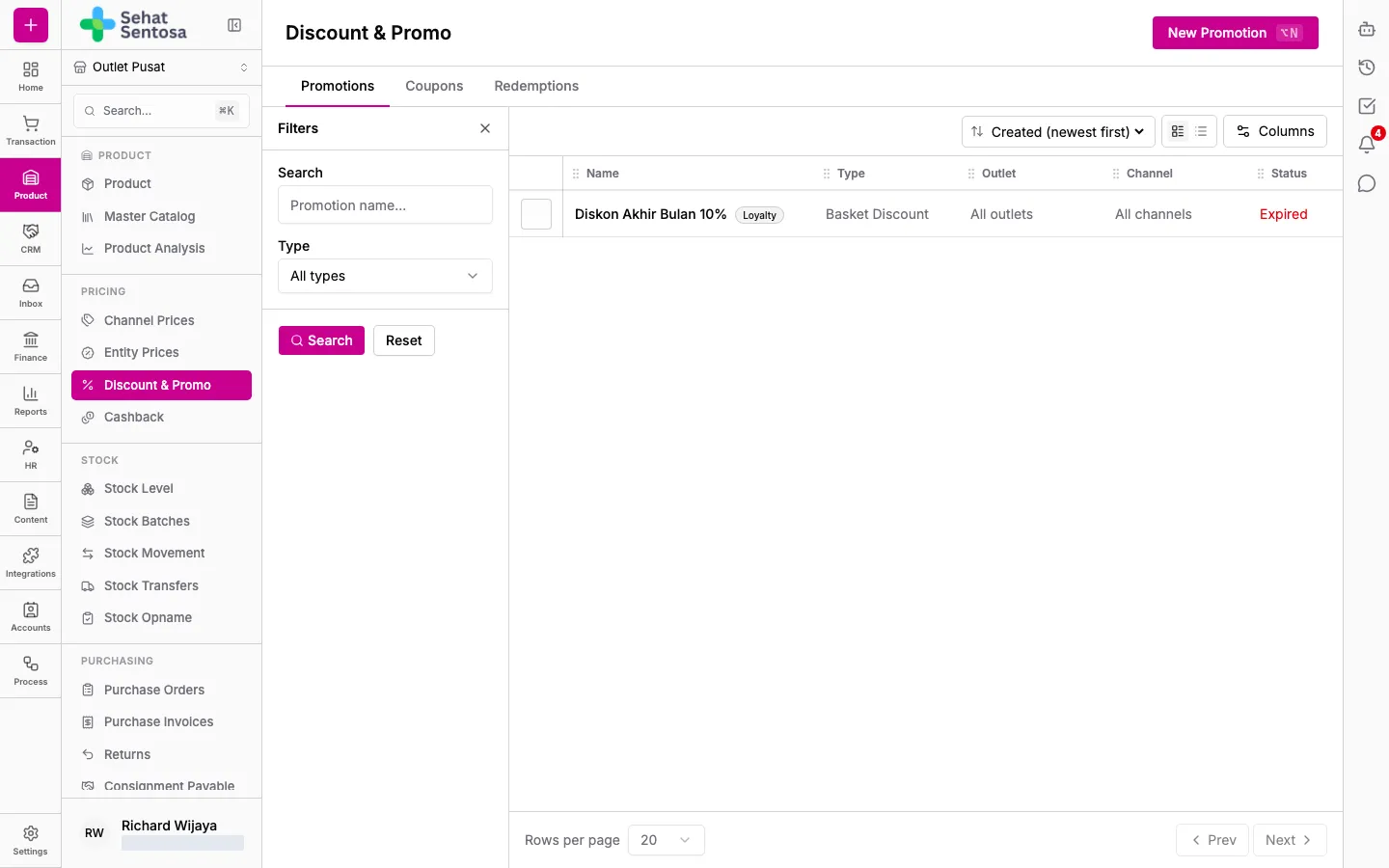
Open Product & Inventory → Pricing → Discount & Promo. The page has three tabs: Promotions, Coupons and Redemptions.
Create a promotion
Section titled “Create a promotion”- On the Promotions tab, click New Promotion.
- Enter a Name and, if you like, a Description.
- Pick a Type:
- Product Discount: a discount on specific products.
- Basket Discount: a discount on the basket total.
- Buy X Get Y: buy a given product, get another at a discount or free.
- Voucher: a discount redeemed with a coupon code.
- Limit it to an Outlet and Sales Channel, or leave them empty for all outlets and channels.
- Set the discount:
- For discounts and vouchers: pick a Discount Type (Percentage or Fixed Amount (IDR)), fill in Percent Off or Amount Off (IDR), and optionally Max Discount (IDR, optional), Min Basket Amount (IDR) or Min Qty (optional).
- For Buy X Get Y: pick the Buy Product and Buy Qty, then the Get Product, Get Qty and Get Discount % (100 = free).
- Optionally set usage limits: Total Usage Limit and Per-Customer Limit.
- Fill in Starts At and, if needed, Ends At.
- Tick Active. Tick Stackable with other promotions if it may combine with other promotions.
- Save.
The list shows each promotion’s status: Active, Upcoming, Expired or Inactive.
The promotion page
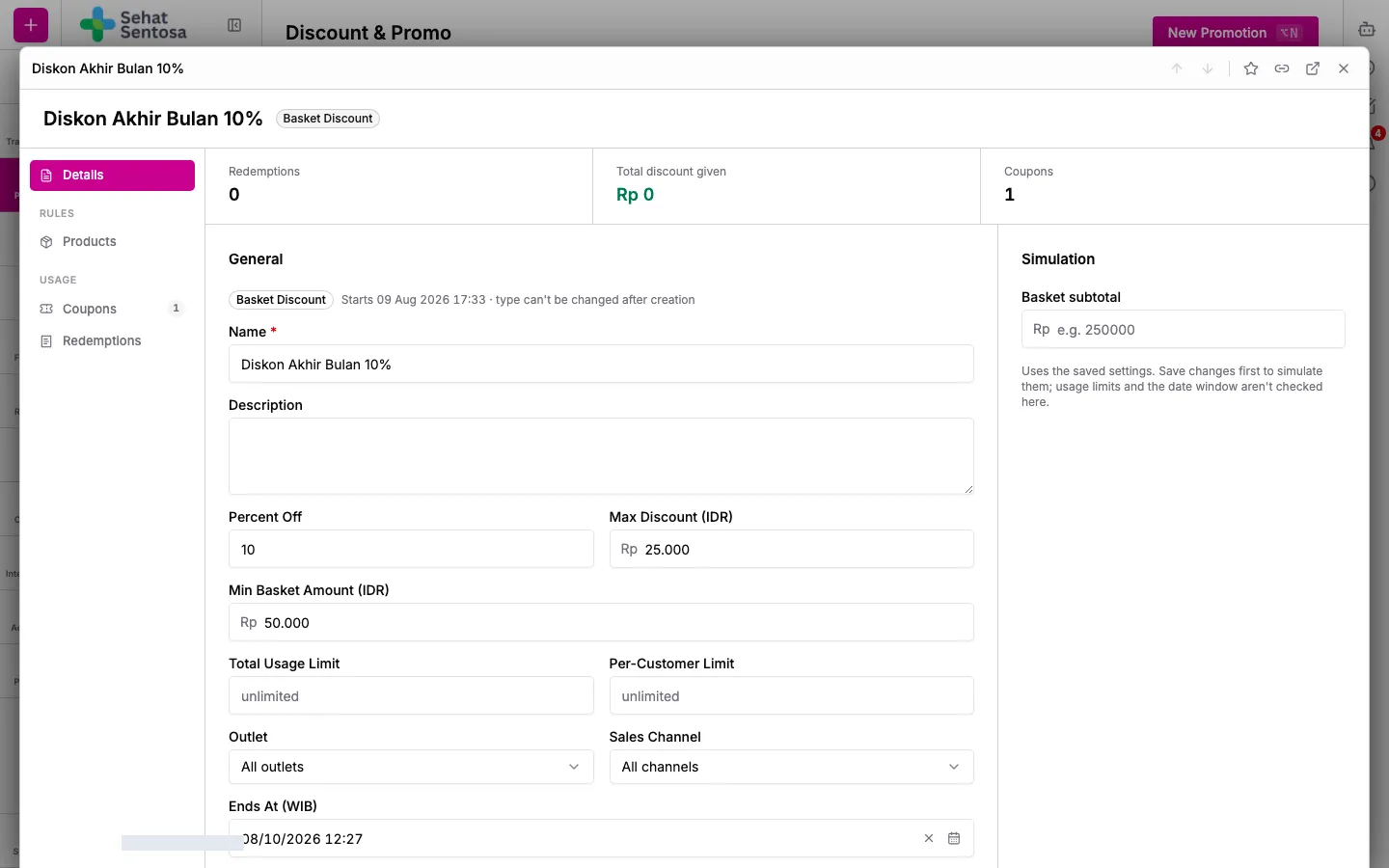
Section titled “The promotion page”Click a promotion in the list to open it. The left nav has Details, Products (under Rules), and Coupons and Redemptions (under Usage). The top shows Redemptions, Total discount given and the number of Coupons.
- Details: edit the name, description, discount value, usage limits, outlet, channel, Ends At, Active and Stackable under General, then click Save Changes. The type can’t be changed after creation. Under Loyalty Dashboard, tick Show in loyalty dashboard’s public offers to show the promotion in the customer loyalty app, and upload an Image for its promo card.
- Products: click Add Product, pick the Product and save. Tick Exclude this product instead of including it to carve a product out. With no rows, the promotion applies to every product.
- Coupons: this promotion’s coupons. Click New Coupon(s) to create coupons from here, or the share icon to share a coupon with specific loyalty accounts (Share to Loyalty Accounts).
- Redemptions: this promotion’s redemptions, with the customer, coupon, invoice, discount and date.
Promotion simulator
Section titled “Promotion simulator”On Details and Products, the Simulation panel on the right works out the discount for a sample sale before customers use the promotion:
- Product Discount: pick a Product, enter the Quantity and Unit price. If the product is out of scope or under the minimum quantity, it tells you why there’s no discount.
- Basket Discount and Voucher: enter a Basket subtotal. If it’s under the minimum basket, it shows how much is still to go.
- Buy X Get Y: enter the Reward unit price of the free or discounted product.
The result shows the Subtotal, Discount and Total.
Create coupons
Section titled “Create coupons”- On the Coupons tab, click New Coupon(s).
- Pick the promotion the coupons belong to.
- Choose Single Code and enter a Code (for example
WELCOME10), or choose Bulk Generate and fill in How many codes?. - Optionally set Usage Limit per Code and Valid Until.
- Save.
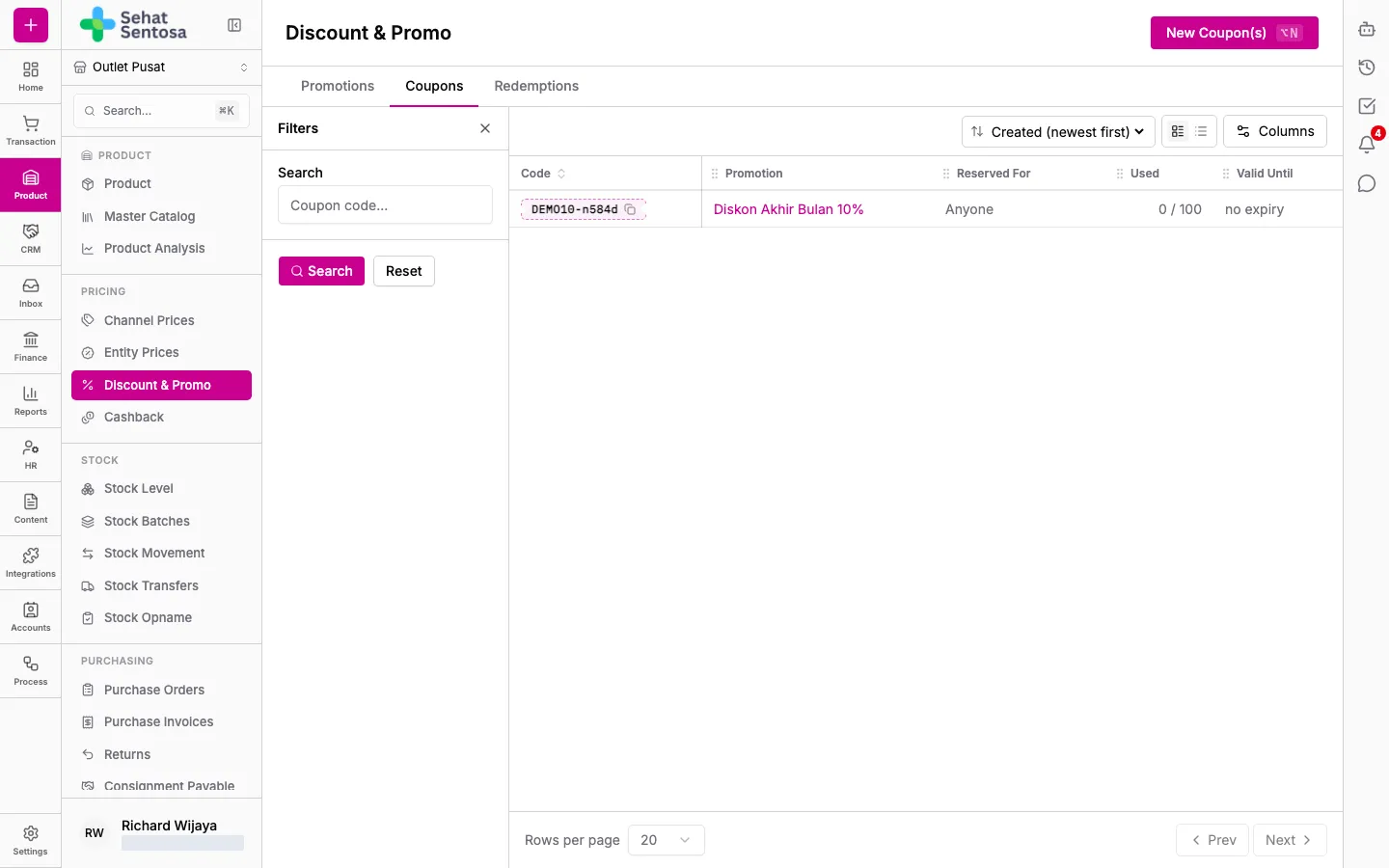
Click a coupon’s status in the list to activate or deactivate it.
Review redemptions
Section titled “Review redemptions”The Redemptions tab lists every promotion and coupon redemption, with the customer, invoice and discount amount. To record one by hand, click Record Redemption, pick the promotion, fill in Coupon Code and Discount Amount (IDR), and optionally pick the customer and invoice.