
Track and approve requests
Every purchase request goes through two checks: first by a Checker (pemeriksa) at your company, then by the pharmacy (outlet) that fills the order.
See your requests
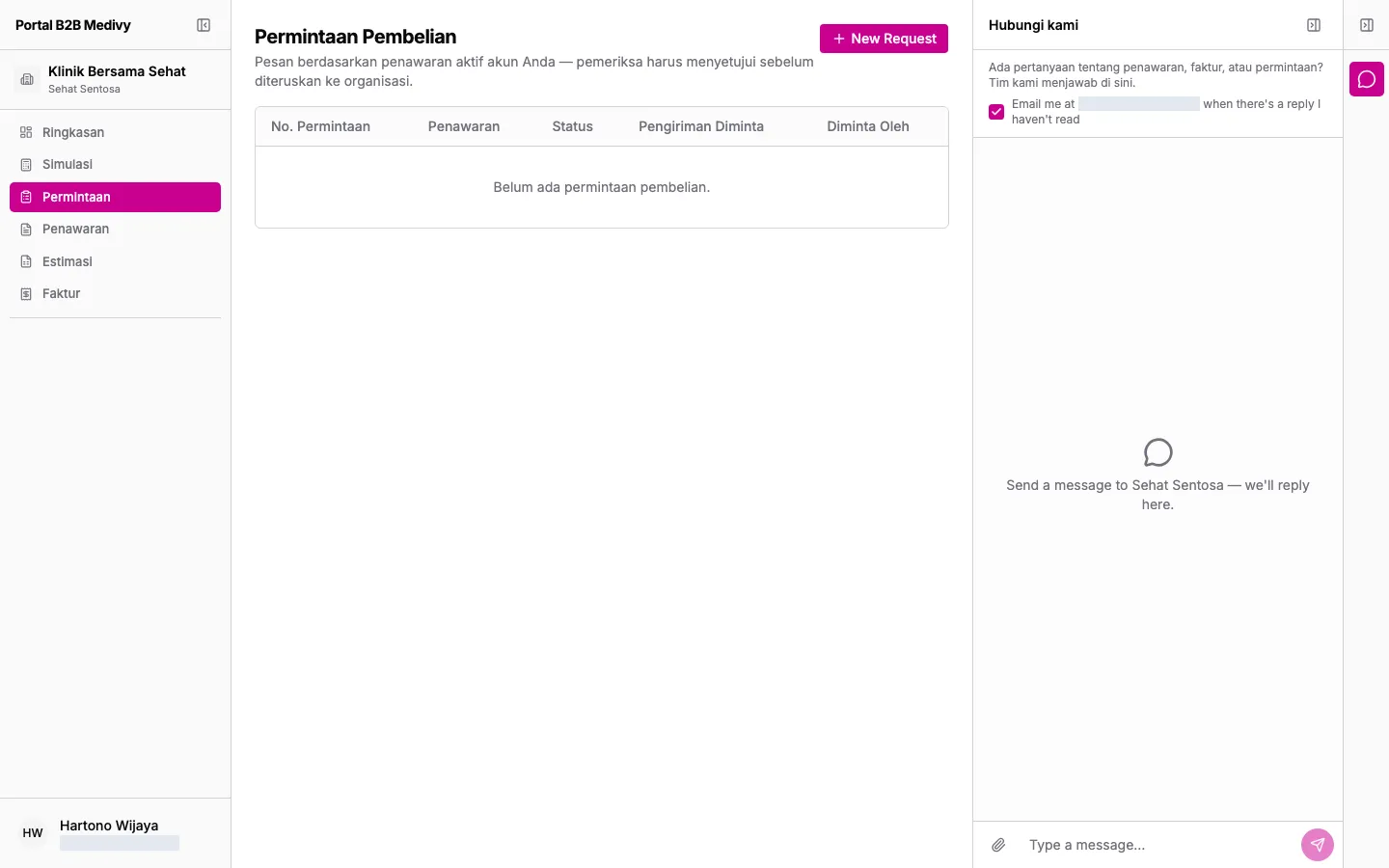
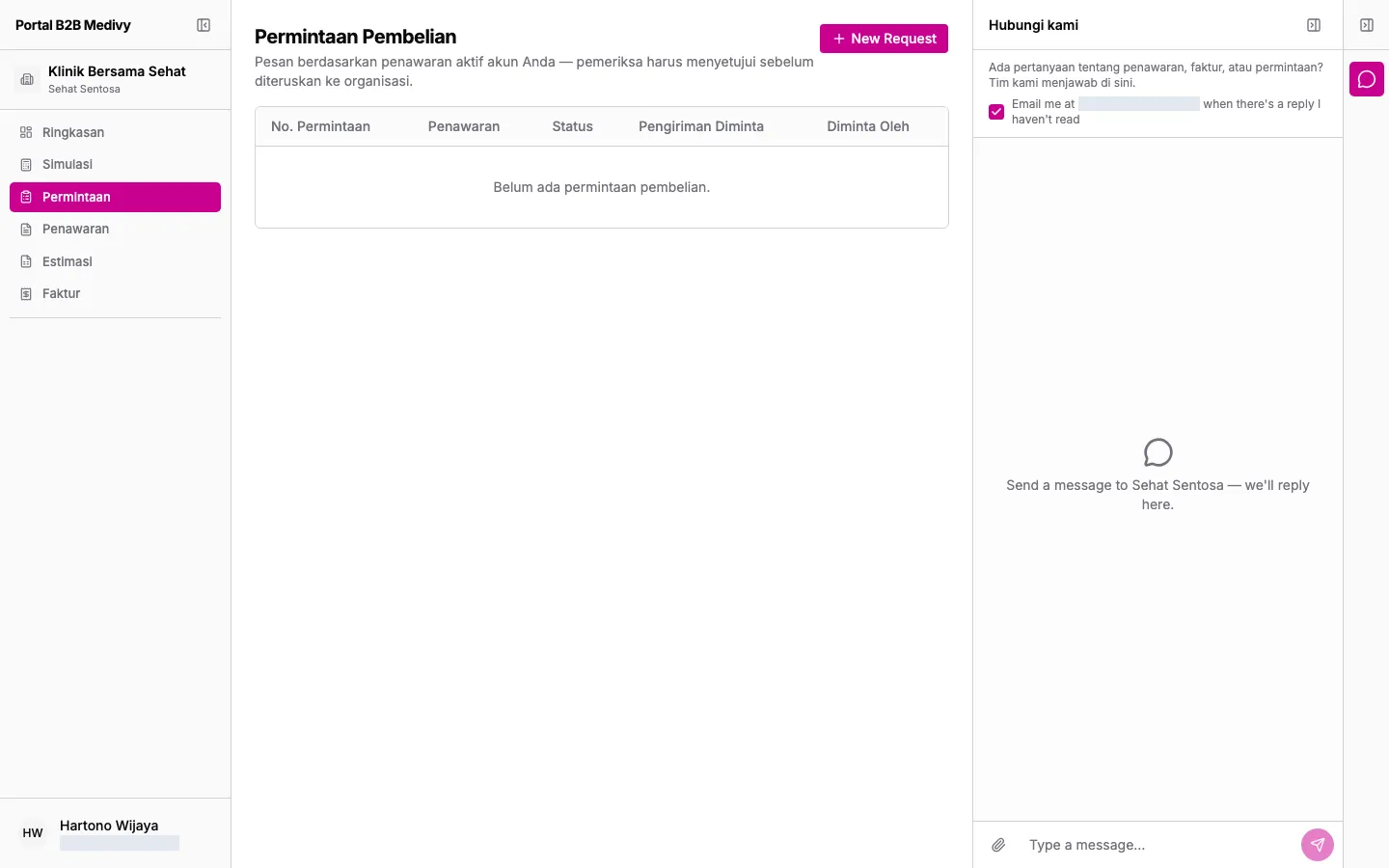
Section titled “See your requests”- Click Permintaan (Requests) in the left menu. The Permintaan Pembelian (Purchase Requests) page opens.
- The table shows the request number (No. Permintaan), proposal (Penawaran), Status, requested delivery date (Pengiriman Diminta) and who created it (Diminta Oleh).
- Click a row to open it.
Statuses
Section titled “Statuses”| Status | Meaning |
|---|---|
| Draf (Draft) | Not submitted. Only your team can see it. |
| Menunggu Pemeriksa (Awaiting Checker) | Submitted and waiting for a Checker at your company. |
| Ditolak Pemeriksa (Rejected by Checker) | Rejected by the Checker. The reason is under Catatan Pemeriksa (Checker Notes). |
| Menunggu Outlet (Awaiting Outlet) | Approved by the Checker, waiting for the pharmacy to confirm. |
| Ditolak Outlet (Rejected by Outlet) | Rejected by the pharmacy. The reason is under Catatan Outlet (Outlet Notes). |
| Dikonfirmasi (Confirmed) | Confirmed by the pharmacy and being processed. |
| Ditagihkan (Invoiced) | An invoice has been issued. See Faktur (Invoices). |
Submit or delete a draft
Section titled “Submit or delete a draft”Role: Maker or Checker.
- Open a request with status Draf. It says “Draf ini belum diajukan — orang lain belum dapat melihatnya.” (this draft isn’t submitted; nobody else can see it yet).
- Click Submit for Approval to send it to a Checker.
- Or click Delete Draft and confirm with Hapus (Delete).
Approve or reject (Checker)
Section titled “Approve or reject (Checker)”Role: Checker.
- Open a request with status Menunggu Pemeriksa. It says “Menunggu persetujuan Anda sebagai pemeriksa.” (awaiting your approval as checker).
- Check the products, quantities and total.
- Choose one:
- Click Approve. The request goes to the pharmacy, which gets a notification.
- Click Reject, fill in Alasan penolakan (Reason for rejection), then click Confirm Reject. Click Batal (Cancel) to back out.
Users who aren’t Checkers see “Diajukan — menunggu persetujuan pemeriksa.” (submitted, awaiting checker approval) with no buttons.