
Product catalog and creating products
The product catalog lists every product in your organization: medicines, medical supplies and anything else your outlets sell. Use it to find a product, check its buy and sell prices, or add a new product.
Menu: Product & Inventory → Product → Product.
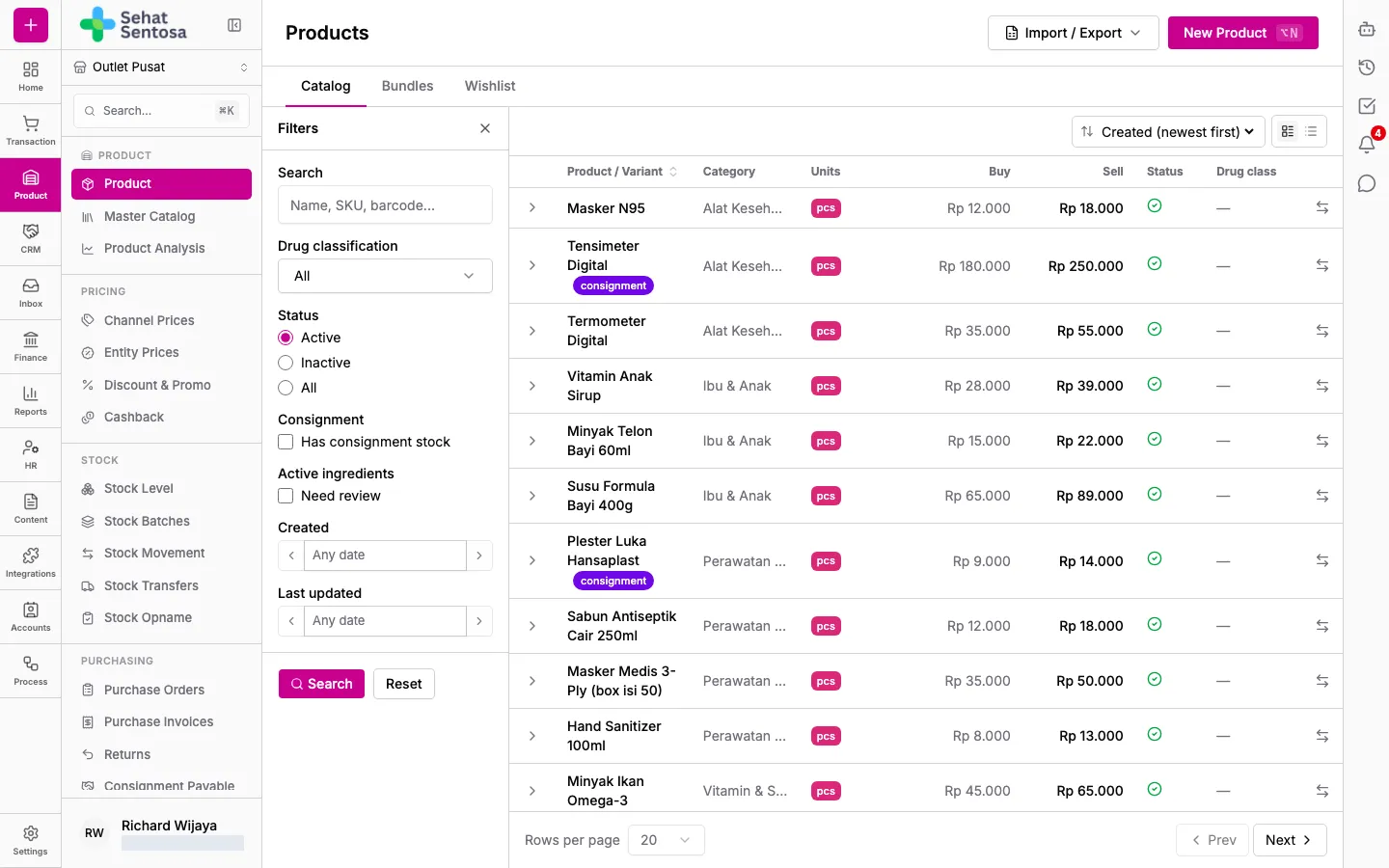
Find a product
Section titled “Find a product”- Open Product & Inventory → Product → Product. The Catalog tab opens.
- Open the Filters panel on the left and type a name, SKU or barcode in Search.
- If needed, filter by Drug classification, Status (Active, Inactive, All), Consignment (Has consignment stock), Active ingredients (Need review), Created or Last updated.
- Click Search to apply the filters, or Reset to clear them.
- Click the arrow at the start of a row to show the product’s variants (SKU, barcode, buy and sell price per variant).
- Click a product row to open its details.
The list shows the category, Units, Buy price, Sell price, status and drug class. A red arrow next to a variant’s buy price means it went up since the last change; a green arrow means it went down. Click the arrow to see the previous price.
Add a new product
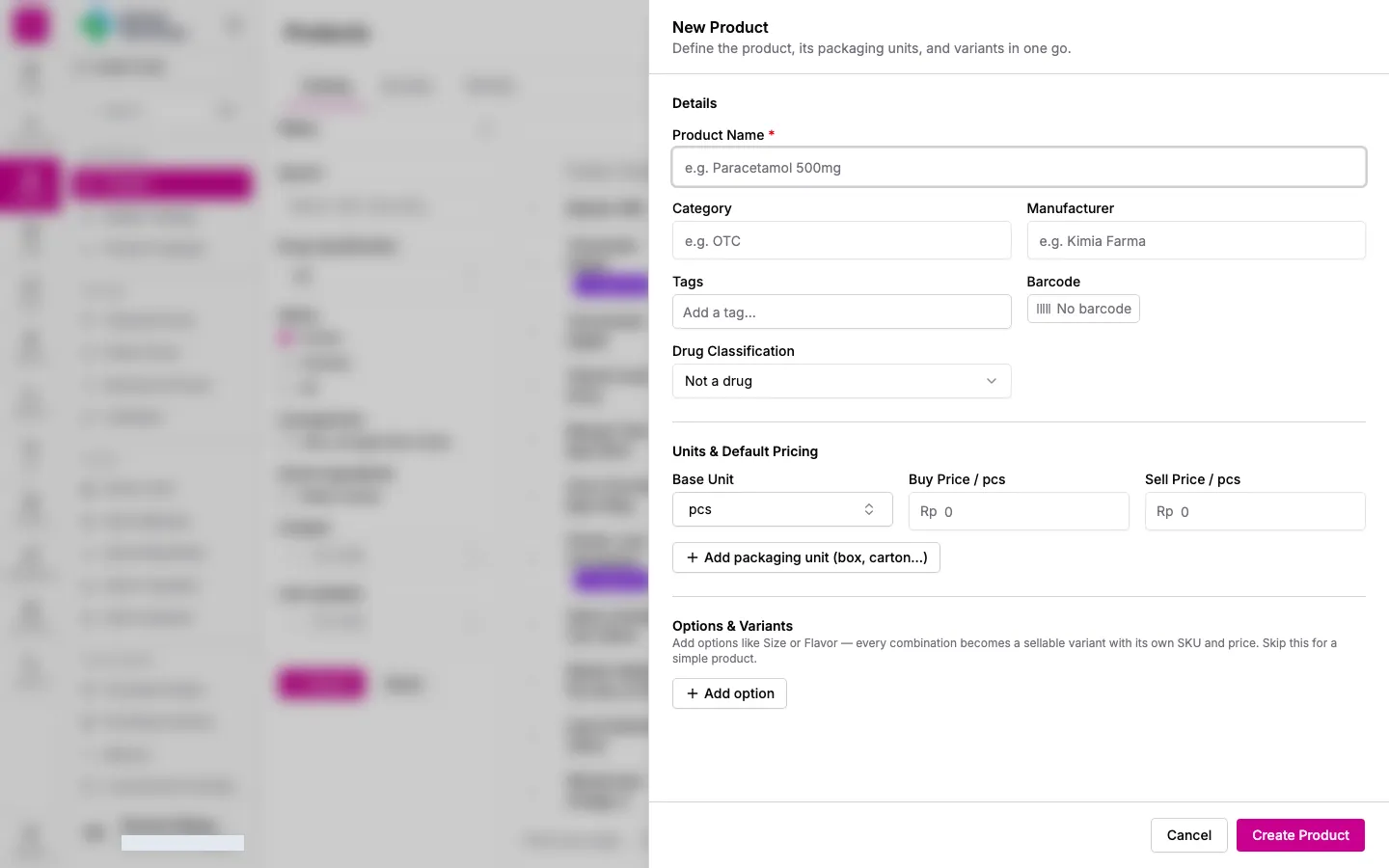
Section titled “Add a new product”- In the catalog, click New Product. The New Product panel opens on the right.
- Under Details, fill in Product Name (required) and, if needed, Category, Manufacturer, Tags, Barcode and Drug Classification (leave it empty for non-drug products).
- Under Units & Default Pricing, pick the Base Unit (
pcsby default) and enter the Buy Price and Sell Price per base unit. - For packaging units such as strip or box, click Add packaging unit (box, carton…). Pick the unit code, enter how many base units one pack holds, and add the pack’s barcode if it has one.
- If the product has variants (for example size or flavour), add an option name under Options & Variants (for example Size), then type each value and press Enter. Medivy creates one variant per combination. You can change each variant’s SKU, prices and barcode, or switch off combinations you don’t sell. A variant without a name is shown by its option values, for example “Face mask (Blue, M)”, in lists, transactions and printed documents.
- Click Create Product. The new product’s details open.
Edit a product
Section titled “Edit a product”The product detail page has a menu on the left: General, Prices, Drug Attributes, Suppliers, Buy Price Log, Volume Discounts, Images, Stock History, Compare and Shared.
- Open the product from the catalog.
- In General, change the name, category, manufacturer, tags or other settings, then click Save Changes.
- To hide a product you no longer sell, untick Active. Its sales, stock and price history are kept.
- In the Variants section, click Add Variant to add variants one at a time.